CASTING DIRECTORS: How do I search the Talent Database?

Edited

This article explains how to use the Advanced Search feature to find talent based on specific criteria—such as location, skills, or representation—and add them directly to your projects.


How do I perform an Advanced Search?

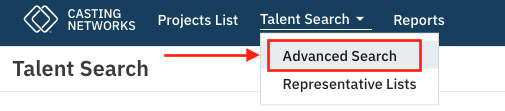
  1. Click Talent Search in your global navigation bar.

  2. Select Advanced Search

    A screenshot of the Casting Networks website menu showing the main navigation bar with "Casting Networks," "Projects List," "Talent Search," and "Reports." A dropdown menu under the "Talent Search" link is open, highlighting the "Advanced Search" option with a red box and an arrow pointing to it. The "Representative Lists" option is visible below "Advanced Search." The main page title is "Talent Search."

  3. Enter your criteria. You can search by location, representative, skills, and any other information a talent has entered on their profile. 
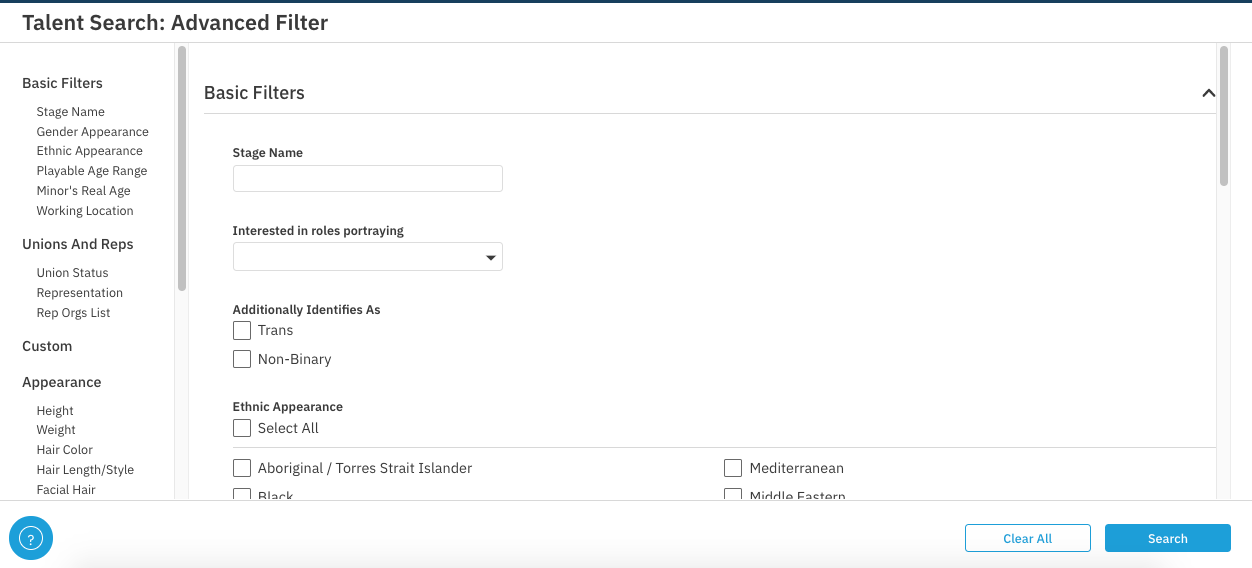
    A screenshot of an "Advanced Filter" page for a "Talent Search" application. The left sidebar shows filter categories: Basic Filters (Stage Name, Gender Appearance, Ethnic Appearance, Playable Age Range, Minor's Real Age, Working Location), Unions and Reps (Union Status, Representation, Rep Orgs List), Custom, and Appearance (Height, Weight, Hair Color, Hair Length/Style, Facial Hair). The main pane, under "Basic Filters," includes fields for "Stage Name," a dropdown for "Interested in roles portraying," and checkboxes for "Additionally Identifies As" (Trans, Non-Binary). Below this is "Ethnic Appearance" with a "Select All" option and checkboxes for various groups, with "Aboriginal / Torres Strait Islander," "Black," "Mediterranean," and "Middle Eastern" partially visible. A "Clear All" button and a "Search" button are at the bottom right.


How do I add talent to a project?

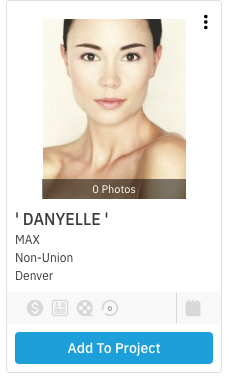
  1. From your search results, click Add to Project

    A headshot of a woman named Danyelle, with light skin and dark hair pulled back, looking directly at the camera. The image is on a profile card with the details: MAX, Non-Union, Denver, and a button that says "Add To Project." A small badge at the bottom of the photo reads "0 Photos."

  2. A window will appear allowing you to select the Project, Role, and Selection Tag for the talent. 
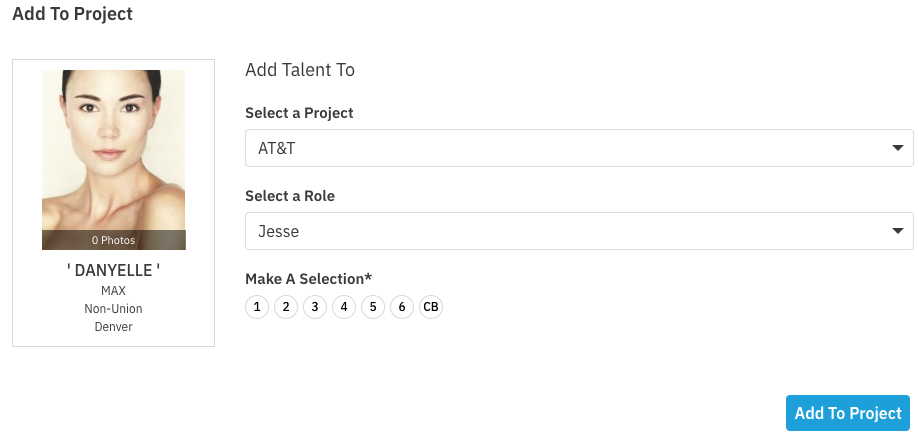
    A screenshot of a digital form titled "Add To Project" showing a talent profile for 'DANYELLE' MAX, a Non-Union talent from Denver. The profile image shows a headshot of a woman. To the right, there are fields to "Add Talent To" a project: "Select a Project" is set to "AT&T", "Select a Role" is set to "Jesse", and the required field "Make A Selection*" has radio button options numbered 1 through 6, plus "CB," none of which are currently selected. A blue "Add To Project" button is visible at the bottom right.


Was this article helpful?

Sorry about that! Care to tell us more?

Thanks for the feedback!

There was an issue submitting your feedback
Please check your connection and try again.