CASTING DIRECTORS: How do I manage Favorite Lists?

Edited

This article explains how to create, rename, delete, and manage talent within your Favorite Lists.


Creating a new Favorite List

To create a new Favorite List:

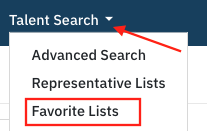
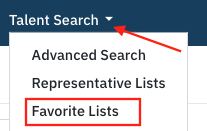
  1. Click Talent Search in the global navigation.

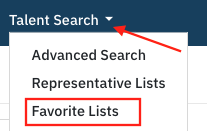
  2. Select Favorite Lists

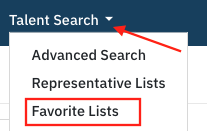
    A screenshot showing a drop-down menu titled **"Talent Search"**. The drop-down menu lists three options: **"Advanced Search"**, **"Representative Lists"**, and **"Favorite Lists"**. A red arrow points to the **"Talent Search"** title, and a red rectangular box highlights the **"Favorite Lists"** option.

  3. Select the +Add Favorite List button (top right). 
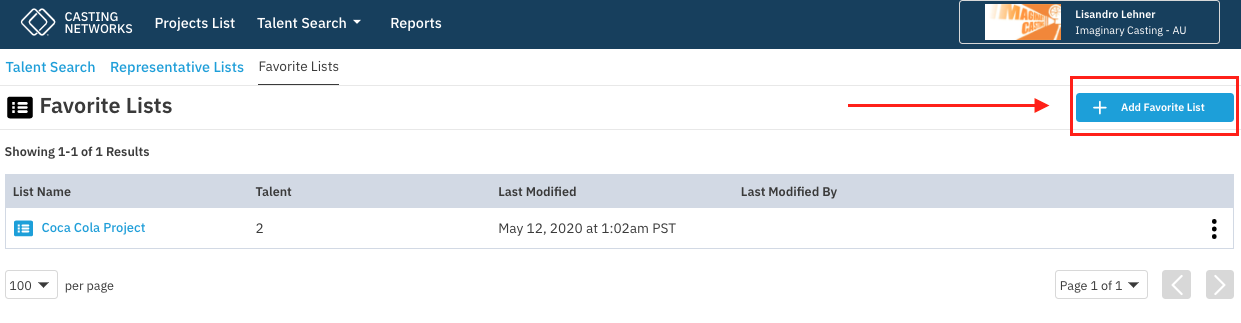
    A screenshot of a web page titled **"Favorite Lists"** within a **Casting Networks** interface. The main section shows a table with one entry: a list named **"Coca Cola Project"** containing **2** pieces of talent, last modified on **May 12, 2020 at 1:02am PST**. A large red arrow points to a prominent blue button on the right side labeled **"➕ Add Favorite List"**, which is also enclosed in a red rectangle. The top navigation bar includes **"Talent Search"**, **"Projects List"**, and **"Reports"**.

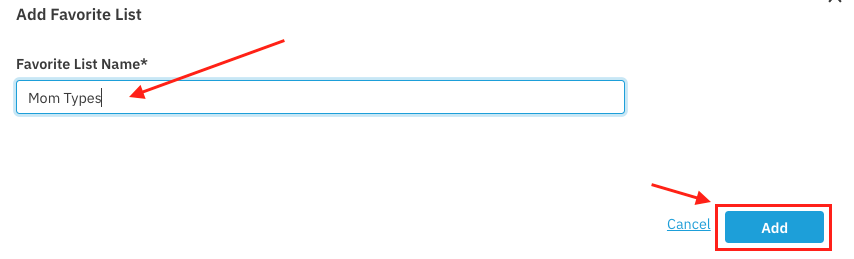
  4. Enter a list name then press Add

    A screenshot of a pop-up window titled **"Add Favorite List"**. This window contains a required field, **"Favorite List Name*"**, which has the text **"Mom Types"** entered into it. Two red arrows point to the text field and the name entered. At the bottom right of the window, there are two options: **"Cancel"** and a blue button labeled **"Add"**, which is highlighted by a red arrow pointing to it and a red rectangular box around it.

  5. Select Start Searching for Talent to search for talent to add to your list. 
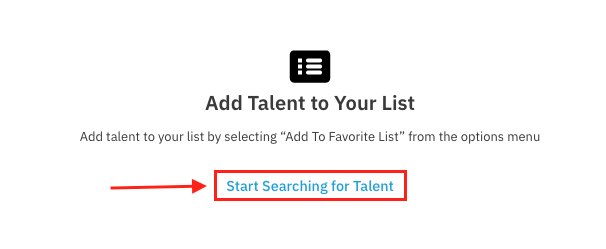
    A screenshot with a large icon of a list and the title **"Add Talent to Your List"**. Below the title is a brief instructional sentence: "Add talent to your list by selecting 'Add To Favorite List' from the options menu". A red arrow points to a prominent red-bordered button below the text, labeled **"Start Searching for Talent"**.

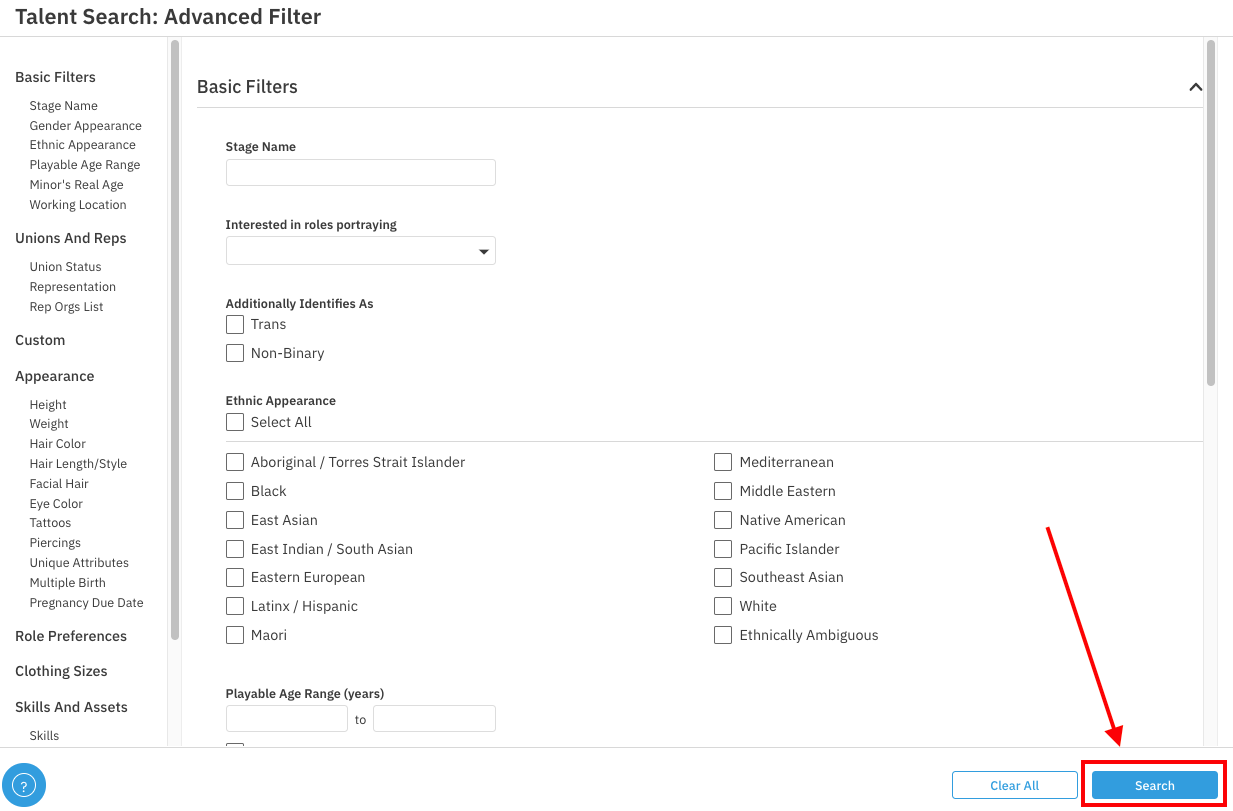
  6. Search for talent on our Talent Search page. When ready, select Search

    An advanced filter section for a "Talent Search" application. The left sidebar shows categories for Basic Filters, Unions and Reps, Custom, Appearance (with subcategories like Height, Weight, Hair Color, etc.), Role Preferences, Clothing Sizes, and Skills and Assets. The main panel displays the Basic Filters section, which includes input fields and checkboxes for:  Stage Name (text input)  Interested in roles portraying (dropdown)  Additionally Identifies As (checkboxes for Trans, Non-Binary)  Ethnic Appearance (Select All checkbox and a list of checkboxes including Aboriginal / Torres Strait Islander, Black, East Asian, East Indian / South Asian, Eastern European, Latinx / Hispanic, Maori, Mediterranean, Middle Eastern, Native American, Pacific Islander, Southeast Asian, White, Ethnically Ambiguous)  Playable Age Range (years) (two text input boxes labeled "to")  At the bottom right, there are Clear All and Search buttons, with a large red arrow pointing directly at the Search button.

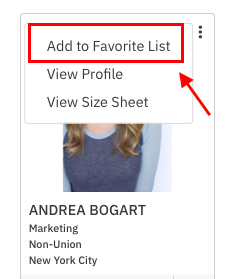
  7. From the options menu (upper right of talent profile), select Add to Favorite List

    A small card showing a person's profile summary. The card features a headshot of a woman and the text ANDREA BOGART followed by her profession, Marketing, her union status, Non-Union, and her location, New York City. An overlay menu is open at the top right, accessed via a vertical ellipsis (kebab menu). The menu options are Add to Favorite List, View Profile, and View Size Sheet. A red box highlights Add to Favorite List, and a red arrow points from the menu options down and to the left.

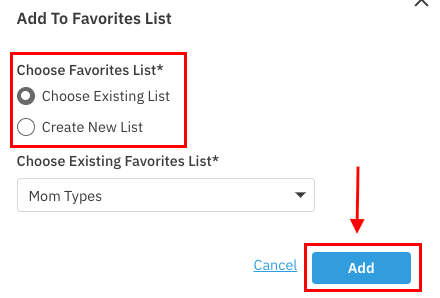
  8. You can add to a preexisting list or create a new list. When ready, select Add

    A modal window titled Add To Favorites List. The window presents two main options:  Choose Favorites List*: A section, highlighted by a red box, containing two radio buttons:  Choose Existing List (selected)  Create New List  Choose Existing Favorites List*: A dropdown menu, currently showing the list name Mom Types.  At the bottom right, there are Cancel and Add buttons. The Add button is blue and highlighted by a red box, with a large red arrow pointing down towards it.


Renaming a Favorite List

To rename a favorite list:

  1. Click Talent Search in the global navigation.

  2. Select Favorite Lists

    A dropdown menu labeled "Talent Search" is open, showing three options: "Advanced Search," "Representative Lists," and "Favorite Lists." A red arrow points from the upper right toward the "Talent Search" label, and a red rectangular box highlights the "Favorite Lists" option.

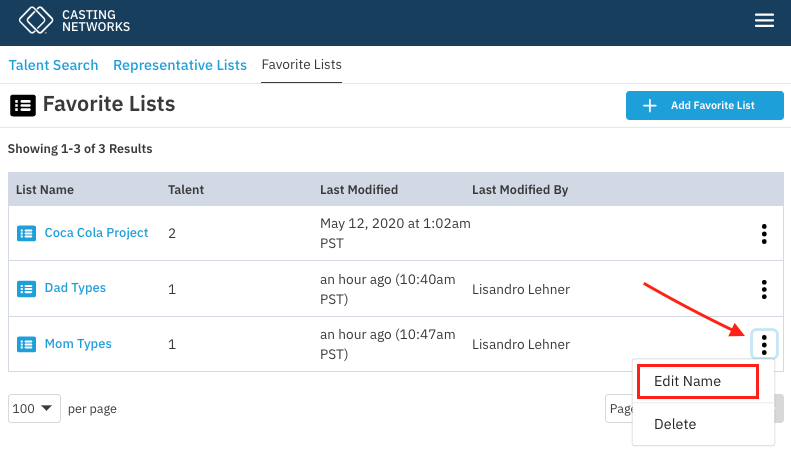
  3. Select the options menu (three vertical dots). Then select Edit Name

    A user interface screen displays the "Favorite Lists" section of a "Casting Networks" application. The main area shows a table with a list of three favorite lists: "Coca Cola Project," "Dad Types," and "Mom Types." An arrow points to the three-dot action menu (ellipses) on the "Mom Types" row, and a red box highlights the resulting dropdown menu, which contains the options "Edit Name" and "Delete."

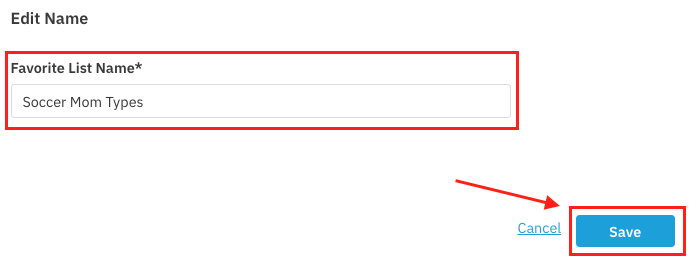
  4. Enter in a new name then select Save

    A dialog box titled "Edit Name" is displayed. It contains a form field labeled "Favorite List Name*" with the current value "Soccer Mom Types." The input field and its label are highlighted by a red box. Below the input field are two action buttons: "Cancel" (as a hyperlink) and a primary "Save" button (in blue), which is also highlighted by a red box with an accompanying red arrow pointing to it.


Deleting a Favorite List


To delete a favorite list:

  1. Click Talent Search in the global navigation.

  2. Select Favorite Lists

    Navigation menu selecting Favorite Lists

  3. Select the options menu (three vertical dots). Then select Delete

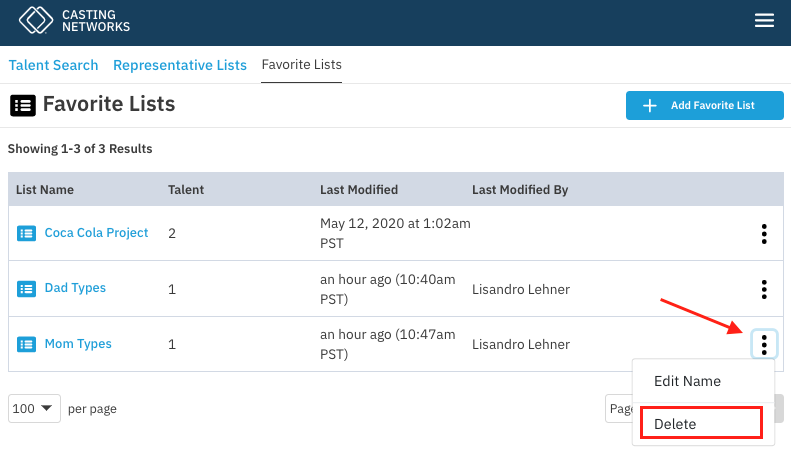
    A screenshot of the "Favorite Lists" page within the "Casting Networks" web application. The table shows three lists: "Coca Cola Project" (with 2 talent), "Dad Types" (with 1 talent), and "Mom Types" (with 1 talent). A red arrow points to the three-dot action menu next to the "Mom Types" list, which is open and displays two options: "Edit Name" and "Delete." The "Delete" option is highlighted with a red box.

  4. On the modal, select Yes, Delete

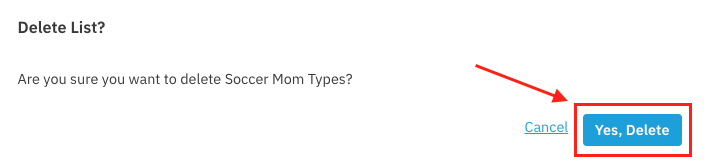
    A screenshot of a confirmation dialog box asking "Delete List?" The text below asks, "Are you sure you want to delete Soccer Mom Types?" A red arrow points to the two action options at the bottom right: a link for "Cancel" and a blue button labeled "Yes, Delete." The "Yes, Delete" button is highlighted with a red box.


Adding talent to an existing list


To add talent to an existing list:

  1. You are able to add talent to this list by selecting Add to Favorite List from the options menu of a talent profile. 
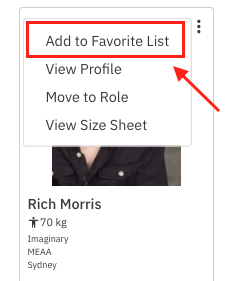
    A dropdown menu is open on a profile card for "Rich Morris." The menu contains the options "Add to Favorite List," "View Profile," "Move to Role," and "View Size Sheet." An arrow points to and a red box highlights the "Add to Favorite List" option. The profile card also shows that Rich Morris is 70 kg, and includes the text "Imaginary," "MEAA," and "Sydney."

  2. You can either add to a preexisting list or create a new list. When ready, select Add

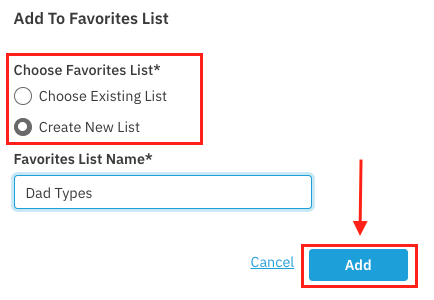
    A dialog box titled "Add To Favorites List." The radio button "Create New List" is selected, and the text input field below, labeled "Favorites List Name," contains the text "Dad Types." A blue rectangular "Add" button is visible in the bottom right, and red arrows highlight the radio button choices, the "Add" button, and the input field area.

Removing talent from an existing list


To remove talent from an existing list:

  1. Click Talent Search in the global navigation.

  2. Select Favorite Lists

    A screenshot of a dropdown menu titled "Talent Search". The menu shows three options: "Advanced Search", "Representative Lists", and "Favorite Lists". A red arrow points from the top right toward the "Talent Search" title, and the "Favorite Lists" option is highlighted with a red rectangular box.

  3. Select a Favorite List.

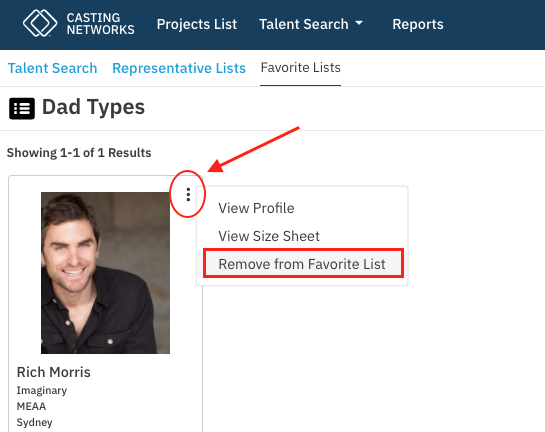
  4. Select the options menu on the talent profile you want to remove.

  5. Select Remove from Favorite List

    A screenshot from the Casting Networks website on the "Favorite Lists" tab, specifically on the "Dad Types" list. The screen shows a single result for "Rich Morris." An arrow points from the center of the screen to a vertical ellipsis (three-dot) menu icon next to the result. The dropdown menu is open, showing the options "View Profile," "View Size Sheet," and "Remove from Favorite List." The "Remove from Favorite List" option is highlighted in red.


Was this article helpful?

Sorry about that! Care to tell us more?

Thanks for the feedback!

There was an issue submitting your feedback
Please check your connection and try again.