CASTING DIRECTORS: How do I create and manage Representatives Lists?

Edited

This article explains how to create new lists, add representatives to existing lists, and remove them when necessary.


How do I create a new Representatives List?

To create a new Representatives List:

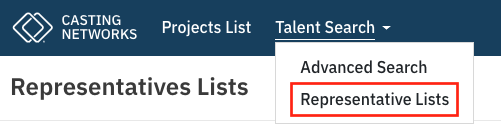
  1. Click Talent Search in the global navigation.

  2. Select Representative Lists.

A screenshot of a website menu for "Casting Networks." The main navigation bar shows "Projects List" and "Talent Search." A dropdown menu under "Talent Search" is visible, listing "Advanced Search" and **"Representative Lists"** which is highlighted with a red box. The main content title is "Representatives Lists."

  1. Click Create New List.

A screenshot of the "Representatives Lists" page on the Casting Networks website, showing the site's dark blue header with the logo on the left and a hamburger menu icon on the right. Below the header, the main page title **"Representatives Lists"** is displayed, and on the right side, there is a prominent blue button labeled **"Create New List"**, which is highlighted with a red box.

  1. Enter a name for your list.

  2. Add Representative companies by using the filters on the left and clicking Search.
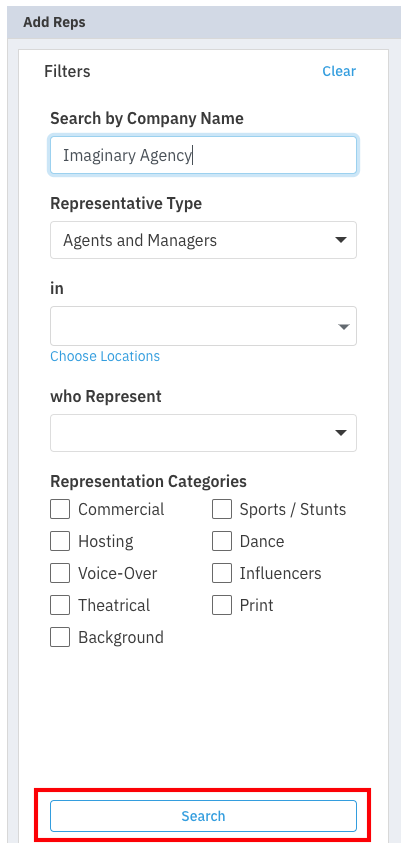
A screenshot showing the **"Add Reps"** dialog box with various filter options for searching representatives. The filters include:  * **Search by Company Name**: An input field with the text "Imaginary Agency." * **Representative Type**: A dropdown menu currently set to "Agents and Managers." * **in**: A dropdown for selecting **locations** (with a "Choose Locations" link below it). * **who Represent**: A dropdown for specifying **what** they represent (e.g., categories). * **Representation Categories**: A list of checkboxes, including: Commercial, Hosting, Voice-Over, Theatrical, Background, Sports / Stunts, Dance, Influencers, and Print. * At the bottom, a prominent blue **"Search"** button is highlighted with a red box.

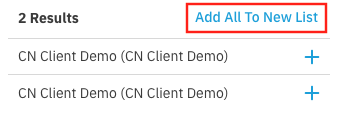
  1. Once the search results are returned, click the plus sign (+) to add each representative company individually to the list or click Add All New To List to add all search results.

  2. Click Save List.


Selecting Representatives (Individual vs. Bulk)

You are given both options. From search results, you can:

  • Click the plus sign (+) to add each representative individually.

OR

  • Click Add All New To List.

A partial screenshot of the search results after clicking the "Search" button in the "Add Reps" dialog box. The results show **"2 Results"** and a link **"Add All To New List"** which is highlighted with a red box. Below this, two entries are listed, both named "CN Client Demo (CN Client Demo)," each with a blue plus sign **(+)** to the right for individual selection.

Make sure you Save List!

Note: If you are individually adding a representative, once you click on the + sign, "Added" will appear to confirm that specific representative has been added.


Adding Talent Representatives to an Existing List

To add representatives to an existing list:

  1. Hover over Talent Search in the global navigation.

  2. Select Representative Lists from the dropdown.

  3. Click the name of your existing list.

  4. Click on the gray Add Reps button under the title of your list.

  5. Fill out the relevant fields and click Search.

  6. Click the plus sign (+) to add each representative individually or, click Add All New To List.

  7. Click Save List.

Removing Talent Representatives from a List

To remove one representative from a list:

  1. Hover over Talent Search.

  2. Select Representative Lists from the dropdown.

  3. Click on the name of your existing list.

  4. Click on the minus sign (-) by the representative you wish to remove.

  5. Click Save List.

To remove all representatives from a list:

  1. Hover over Talent Search in the global navigation.

  2. Select Representative Lists from the dropdown.

  3. Click the name of your existing list.

  4. Click the overflow menu () of the representatives list.

  5. Click Remove All.

  6. Click Save List.

Was this article helpful?

Sorry about that! Care to tell us more?

Thanks for the feedback!

There was an issue submitting your feedback
Please check your connection and try again.