CASTING DIRECTORS: What does "Choose Locations" do, when editing a role's publication settings?

Edited

This article explains how to use the Choose Locations feature to select specific regions for your project. Whether you are releasing a new role or managing talent lists, this guide will help you navigate the location options efficiently.


Overview of Choose Locations

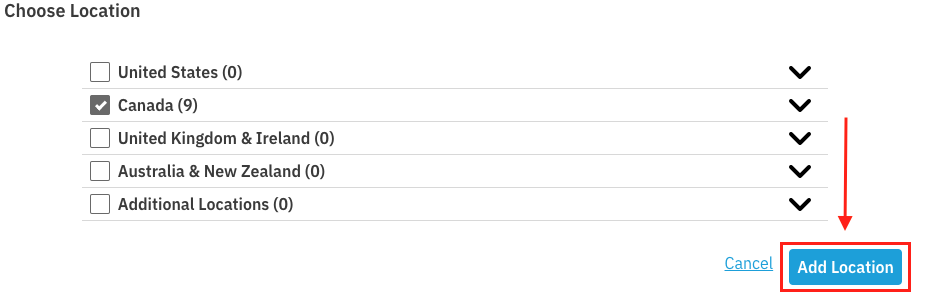
The Choose Locations feature opens a modal that allows you to easily view all of the location options, organized by country and region.

However, if you already know where you would like to publish, you can simply type into the dropdown menu to make your selections quickly.
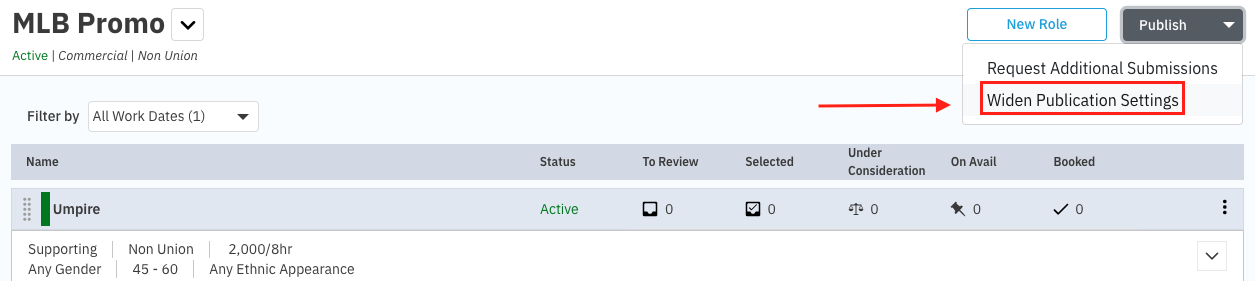
A screenshot of a web application for an "MLB Promo" job listing. The main view shows a list of roles, with one row for "Umpire." The row displays the status as "Active," and checks under "Selected" and "Booked." The top right has a "Publish" button with a dropdown menu open, highlighting two options: "Request Additional Submissions" and "Widen Publication Settings" (the latter is pointed to by a red arrow).


When Does This Feature Appear?

You will see the Choose Locations option in the following scenarios:

  • When first releasing a role

  • When widening the publication settings

  • When adding talent representatives to a list
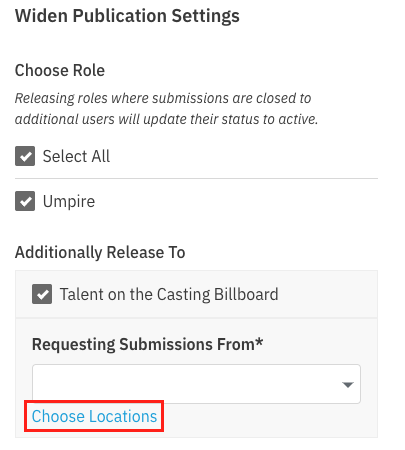
The image shows a modal or screen titled "Widen Publication Settings."  Under the "Choose Role" section, there are two checkboxes:  Select All (checked)  Umpire (checked)  Below that is the "Additionally Release To" section:  Talent on the Casting Billboard (checked)  Finally, under "Requesting Submissions From*":  There is a dropdown input field.  The text "Choose Locations" is highlighted, presumably indicating the next action the user needs to take.


The third image is titled "Choose Location."  It displays a list of global regions with checkboxes and a count next to each, indicating the number of selected sub-locations or available talent.  United States (0) (Unchecked)  Canada (9) (Checked)  United Kingdom & Ireland (0) (Unchecked)  Australia & New Zealand (0) (Unchecked)  Additional Locations (0) (Unchecked)  At the bottom right of the modal, there are two buttons: "Cancel" and "Add Location". The "Add Location" button is highlighted in a blue box, and a red arrow points down towards it, suggesting it is the final step in this selection process.


Was this article helpful?

Sorry about that! Care to tell us more?

Thanks for the feedback!

There was an issue submitting your feedback
Please check your connection and try again.