CASTING DIRECTORS: How do I add more agents to my project or send it directly to talent?

Edited

This article explains how to widen your publication settings to reach more agents/talent and how to request additional submissions for your active roles.


How do I widen publication settings?

To widen the publication settings for any roles you have previously published, follow these steps:

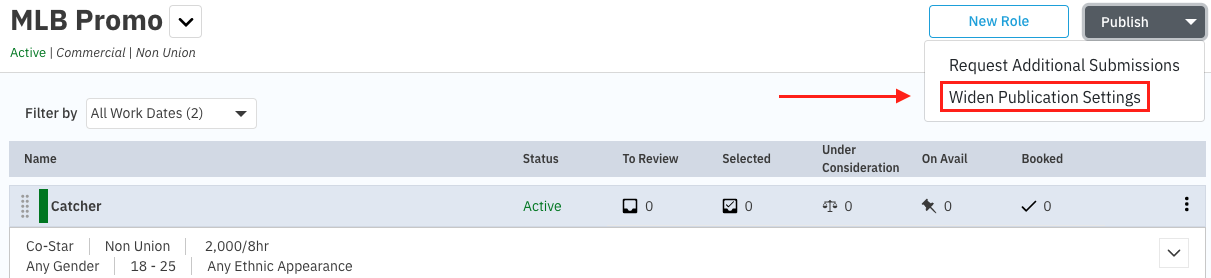
  1. Click on the project title.

  2. Click Publish.

  3. Select Widen Publication Settings

    A screenshot of a casting management software interface for a project titled "MLB Promo." The project details are listed as "Active | Commercial | Non Union." In the top right corner, a dropdown menu labeled "Publish" is open, displaying two options: "Request Additional Submissions" and "Widen Publication Settings." A red box outlines "Widen Publication Settings," and a red arrow points to it, highlighting this specific action. Below the header, there is a filter option for "All Work Dates (2)." A list of roles is visible, showing one role named "Catcher," which is marked as "Active." The role details include "Co-Star," "Non Union," "2,000/8hr," "Any Gender," "18-25," and "Any Ethnic Appearance." Columns to the right show counts for "To Review," "Selected," "Under Consideration," "On Avail," and "Booked," all currently set to zero.

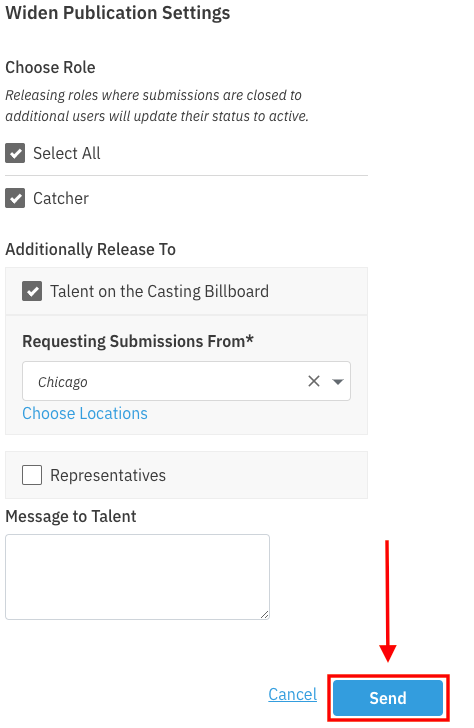
  4. Choose the role(s) for which you would like to widen the publication settings.

  5. Choose Talent on the Casting Billboard and/or Representatives.

    • Note: You can search for additional talent representatives, choose an existing Reps List, or include additional locations.

  6. Click Send

    A screenshot of a pop-up window titled "Widen Publication Settings." Under the "Choose Role" section, checkboxes for "Select All" and "Catcher" are checked. Below, under "Additionally Release To," the option for "Talent on the Casting Billboard" is selected, with "Chicago" set as the location for requesting submissions. The "Representatives" option is unchecked. An empty text box is provided for a "Message to Talent." At the bottom right, a red arrow points vertically down to a blue button labeled "Send," which is also outlined in a red box to emphasize the final step.

  • The publication settings of your role(s) will be modified to include new locations and/or new representatives that match the criteria.

  • Please note that you cannot remove locations or representatives from the publication settings for a role at this time, but we hope to add that functionality in the future.

How do I request additional submissions?

To request more submissions from talent or representatives:

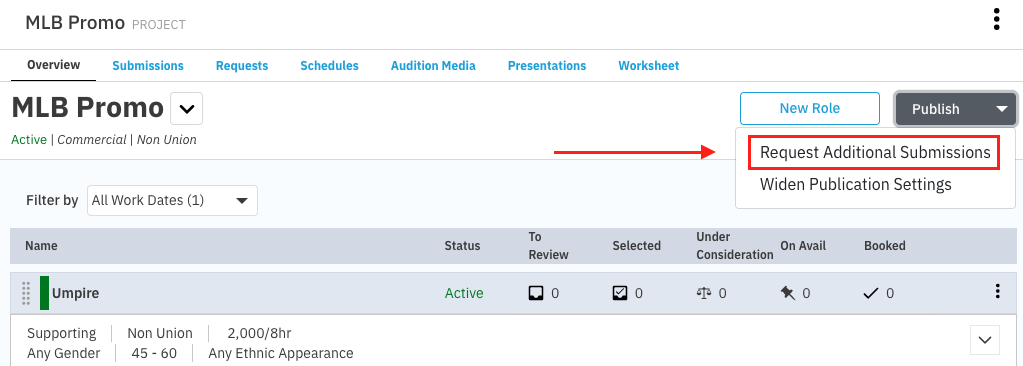
  1. Click on the project title.

  2. Click Publish.

  3. Select Request Additional Submissions

    A screenshot of a casting project dashboard for "MLB Promo." The interface shows a list of roles with one role, "Umpire," visible and marked as "Active." The details for the Umpire role include "Supporting," "Non Union," "2,000/8hr," "Any Gender," "45 - 60," and "Any Ethnic Appearance." In the top right corner, the "Publish" dropdown menu is expanded. A red box outlines the option "Request Additional Submissions," and a red arrow points towards it to indicate the user's selection.

  4. Select specific roles (or all roles) for which you’d like to receive submissions and add a message (optional). 
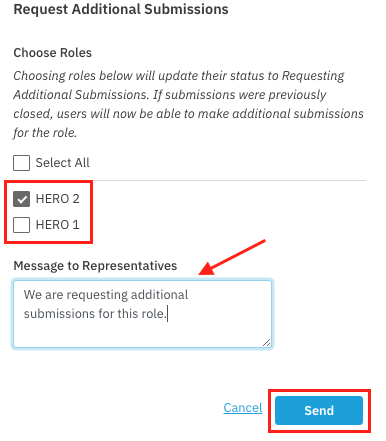
    A dialog box titled **"Request Additional Submissions"**.  The section **"Choose Roles"** has checkboxes for two roles: * A checked box for **"HERO 2"**. * An unchecked box for **"HERO 1"**.  Below this is the section **"Message to Representatives"** with a text box containing the default message: "We are requesting additional submissions for this role."  A red arrow points to the message text box.  At the bottom of the dialog box are two buttons: "Cancel" and a highlighted **"Send"** button. A red box frames the "HERO 2" and "HERO 1" checkboxes, and a red box also frames the "Send" button.

  5. Click Send.


Was this article helpful?

Sorry about that! Care to tell us more?

Thanks for the feedback!

There was an issue submitting your feedback
Please check your connection and try again.