
CASTING DIRECTORS: How do I add or edit a role on a published project?
This article explains how to add a new role to a project that is already live, or how to make changes to an existing role without disrupting the rest of the project.
Add a New Role to a Published Project
To add a new role to an existing project:
From the Project Overview page, click New Role.

Enter role information including any audition information or submission requirements, as well as your publication settings.
Click Save and Add Another Role to continue creating roles or Save and Go to Project Overview to review and publish.

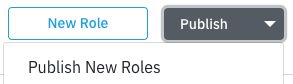
When back on the project overview, click Publish.
Select Publish New Roles.
You will be able to include a message to talent representatives or to talent, depending on your publication settings for new roles.
Click Publish.
Helpful Tip:
You can always refer to the "Projects List" or the Project Overview to view the status of any of your projects. Your project will appear as Active if you have published roles in the project or Not Yet Published if you have yet to do so.
Edit an Already Published Role
To edit an already published role:
Click on the overflow menu (⋮) for the role.
Click on Edit Role.
Helpful Tip:
To edit the publication settings for a role, click on the project title, click Publish, and select Widen Publication Settings.