
CASTING DIRECTORS: How do I use the Project Wizard to create a new project?
This article explains how to use the Project Wizard to streamline the setup process. It allows you to see your progress through a simple three-step bar, ensuring you get your project posted faster.
How do I access the Project Wizard?
To get started with the new wizard, follow these steps:
Navigate to the Projects List page.
Locate the New Project button at the top of the screen.
Select Project Wizard from the dropdown menu.

How do I complete the Project Wizard steps?
Once selected, you will see a progress bar at the top of the screen indicating three distinct steps. Follow the instructions below to complete each section.

Step 1: Create Project
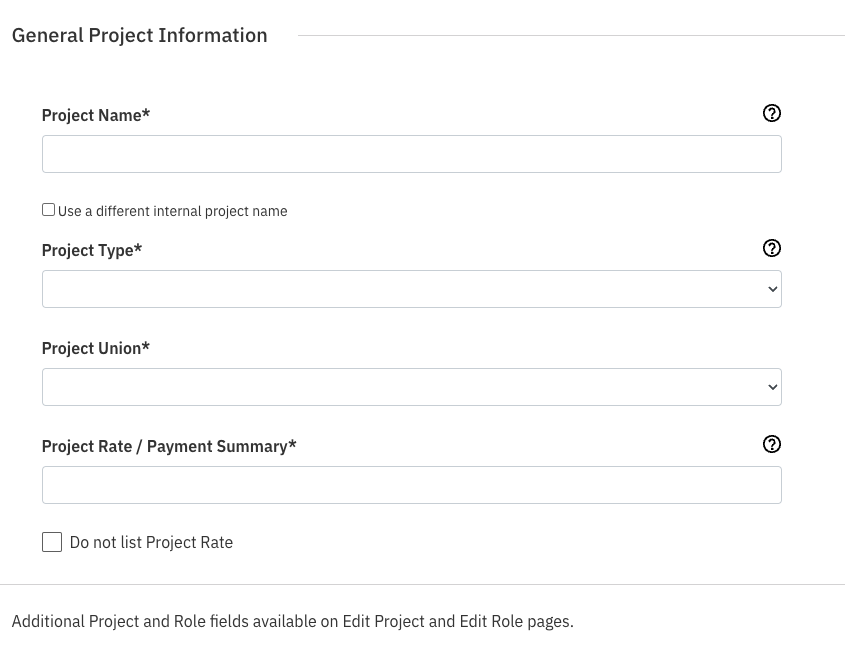
In this first step, you will establish the foundation of your project.
Fill out the basic information, including Name, Type, Union, and Rate.
Note: You can always go back and edit or add more project details later if needed.
Step 2: Publication Settings
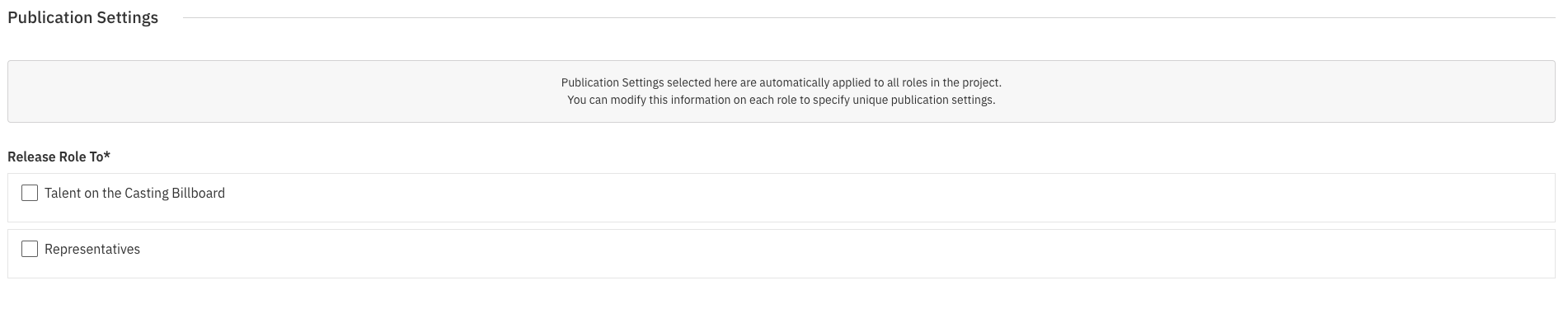
The second step moves directly to publication settings.
Choose who the project is released to.
Select where the project will be released.
Step 3: Create Role(s)
The final step involves filling out the specific role information.
Complete all required fields on the role form (indicated by an asterisk). This includes:
Role Name
Role Type
Role Rate
Demographic Features
Role Description
Submission Requirements
Once the necessary information is filled out, select one of the three options at the bottom of the screen:
Back
Save and Go to Project Overview
Save and Add Another Role

Important: If you are on Step 3 and have filled out role information, navigating back to Step 2 will clear the role information you just entered.