
CASTING DIRECTORS: How do I label an Audition Type to my project?

Edited

This article explains how to label specific Audition Types (In Person, Self-Tape/Virtual, Both, or Not Sure) within the General Project Information settings. Adding this information helps Talent and Talent Representatives understand the submission requirements before applying to your project.


What is the Audition Type feature?

Audition Types can now be labeled at the project level. This setting is found under the General Project Information section when building your project.

  • Options include: In Person, Self-Tape/ Virtual, Both, or Not Sure.

  • These audition types will be viewable on your project overview for yourself, Talent Representatives, and Talent.

  • This is essential information for Talent and Representatives to review prior to submitting to a project.

How to add an Audition Type

  1. Create a new project or Edit a current project.
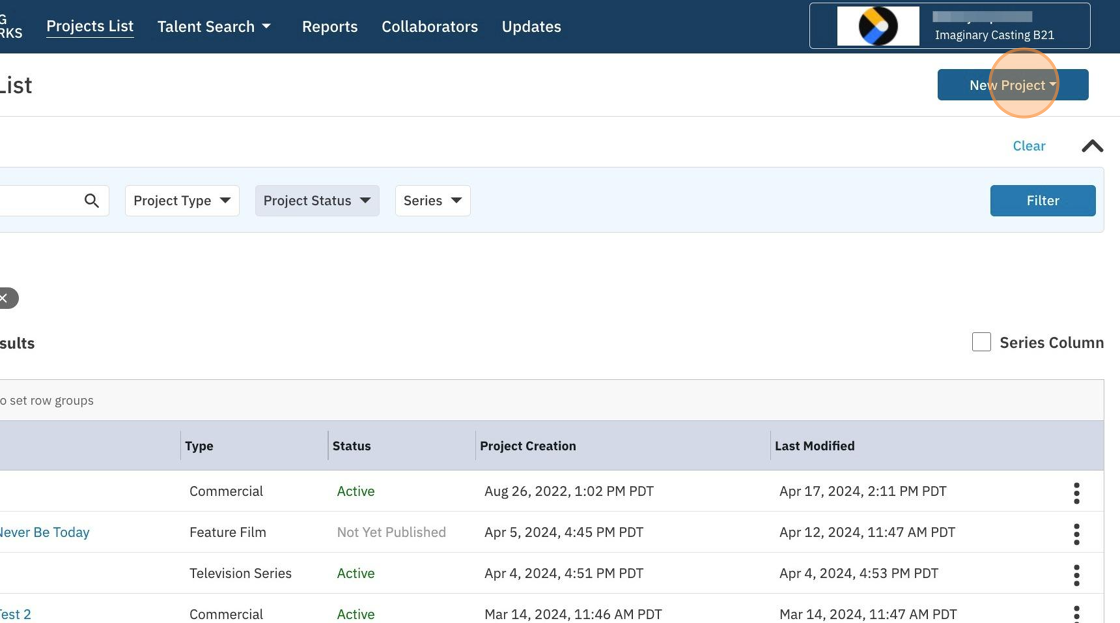
    A screenshot of a project management interface, likely for casting or talent. The navigation bar at the top shows links for **Projects List**, **Talent Search**, **Reports**, **Collaborators**, and **Updates**. On the far right, a button labeled **New Project** is highlighted in an orange circle, next to a user profile icon for **Imaginary Casting B21**. The main content area shows a list of projects with columns for **Type**, **Status**, **Project Creation**, and **Last Modified**. The list includes a mix of project types (Commercial, Feature Film, Television Series) with statuses like **Active** and **Not Yet Published**.

  2. After entering the initial project information, open the audition type drop-down menu.
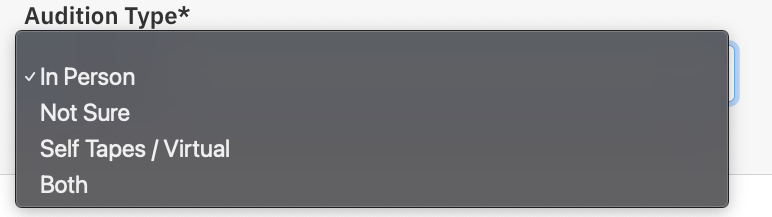
    A dropdown menu under the heading "Audition Type*". The options visible are "In Person" (with a checkmark next to it, indicating it is currently selected), "Not Sure", "Self Tapes / Virtual", and "Both".

  3. Select the audition type that best fits. You can edit this at any time. 
    Tip: If you will not be having auditions, select “Not Sure”.

    A form field labeled **Audition Type*** with a dropdown menu. The current selection in the dropdown is **In Person**.

  4. Continue building the remainder of your project and roles. This information is visible on your project overview for yourself, Talent Representatives, and Talent.
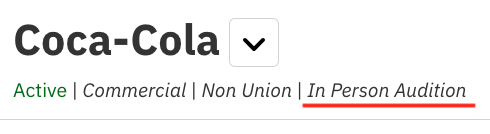
    A screenshot showing a casting notice with the bold text "Coca-Cola" next to a dropdown arrow, and smaller green and gray text below it that reads "Active | Commercial | Non Union | In Person Audition". The text "In Person Audition" is underlined in red.


Was this article helpful?

Sorry about that! Care to tell us more?

Thanks for the feedback!

There was an issue submitting your feedback
Please check your connection and try again.