
CASTING DIRECTORS: How do I activate "light mode" on a presentation?
This article is for casting directors who want to switch their presentation view from dark mode to light mode. By default, all presentations display in dark mode — but you can toggle to light mode at any time using a simple on-screen control. Whether you prefer a brighter display or need it for a specific viewing environment, this guide walks you through exactly how to make the switch.
How to Activate Light Mode
Follow the steps below to switch your presentation from dark mode to light mode:
Go to either the presentation link or the presentation preview.
Locate the half white / half black circle icon on the right-hand side of the presentation page.
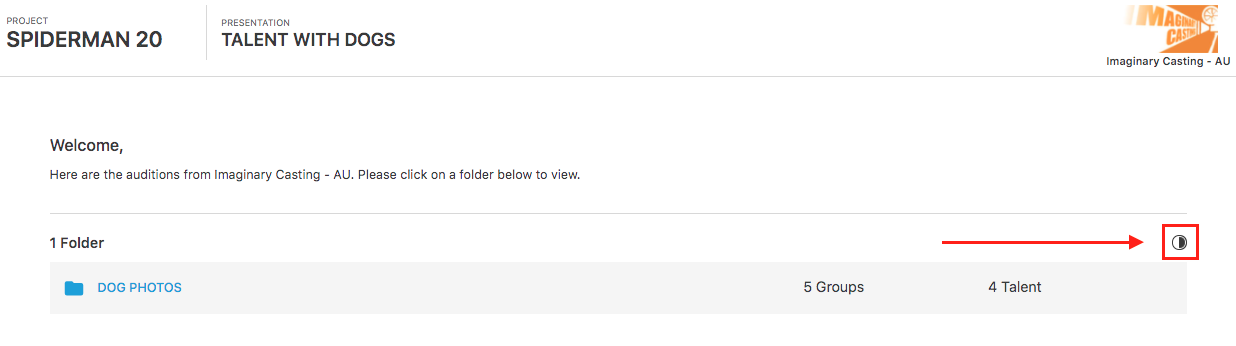
Click the icon to toggle between light mode and dark mode.
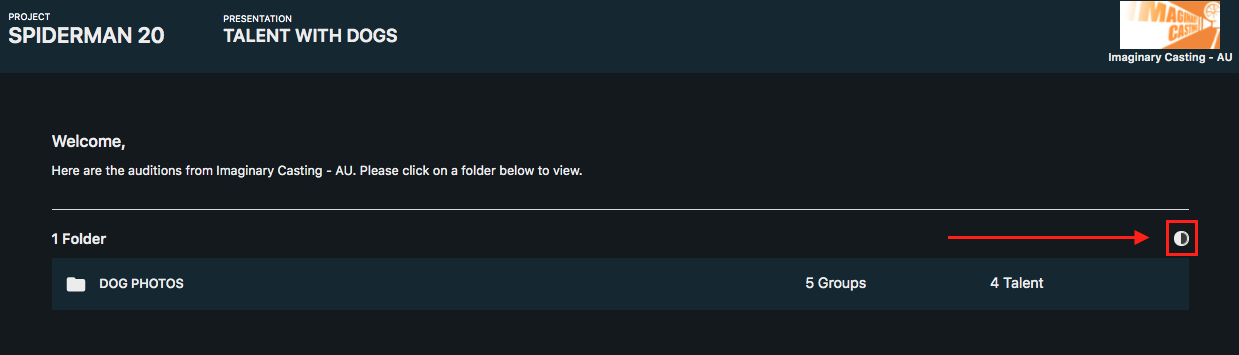
That's it — click the icon again at any time to switch back to dark mode.