CASTING DIRECTORS: How do I add or remove talent from a group?
This article is for Casting Directors, it explains how to add talent by searching the existing database or using "Quick Add" to create a placeholder, as well as how to remove talent via the Sessions tab or a Presentation.
How do I add talent to a group via Quick Add?
Casting is able to add talent manually to a group via "Quick Add." This acts as a placeholder for talent not currently on Casting Networks.
Go to the Sessions tab on the project.
Choose a Session.
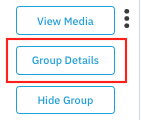
Select + Empty Group if you are adding talent to their own group or select Group Details on an already existing group.
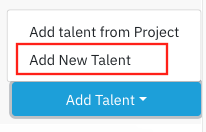
Click the Add Talent drop down (right hand side).
Select Add New Talent.
Click the Not who you're looking for? button.
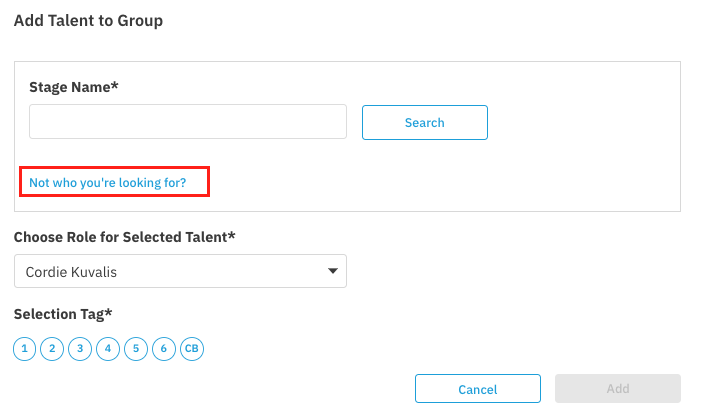
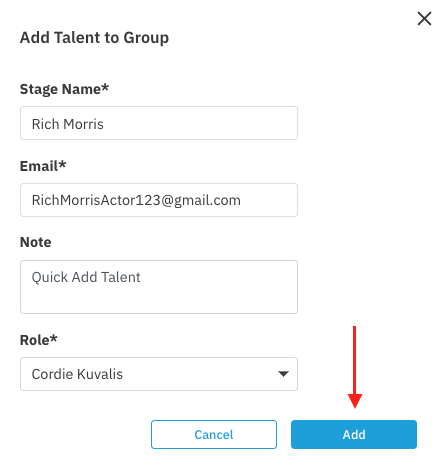
Enter the talent's Stage Name, Email address, any notes you'd like to add, and the role you're adding the talent to.
When ready, select Add.
Important Note Regarding Placeholders
Any talent you add as a placeholder via Quick Add will receive an email inviting them to create a profile for future use.
How do I add talent to a group via Search?
You can also add talent that already exists on the platform by searching for them directly.
Go to the Sessions tab on the project.
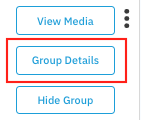
Choose a session then click Group Details.
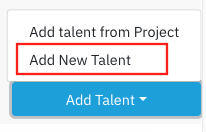
Click the Add Talent drop down (right hand side).
Select Add New Talent.
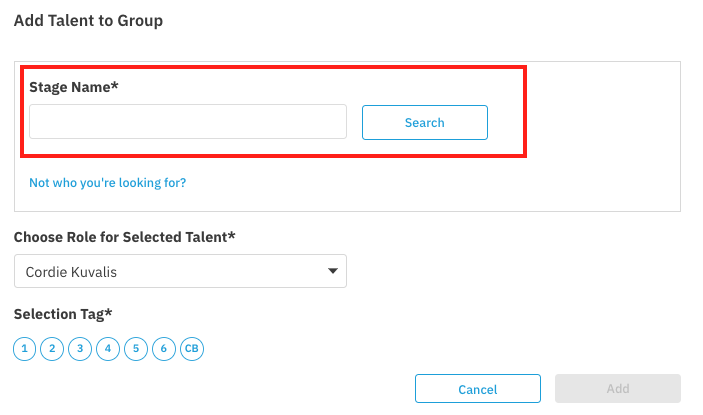
Under Stage Name, type in the stage name of the talent you're searching for. Then click Search.
Once you find the talent, click the Select Talent button to the right of the talent's stage name.

Choose the role for your selected talent.
Add a Selection Tag.
When ready, select Add.
How do I remove talent from a group via the Sessions tab?
Follow these steps to remove a talent from a group using the Sessions tab:
Go to the Sessions tab on the project.
Choose a session, then click Group Details.
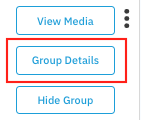
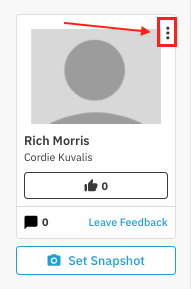
Under the Talent in the Group section (right-hand side), select the menu button (three dots) to the right of the talent's photo.
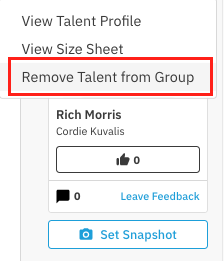
Select Remove Talent from Group.
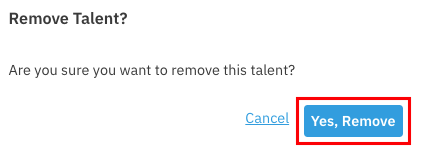
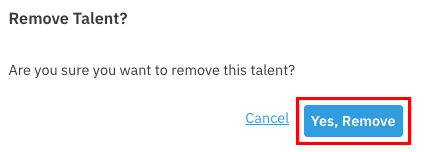
On the pop-up, choose Yes, Remove to confirm.
How do I remove talent from a group via a Presentation?
Follow these steps to remove a talent from a group while in a presentation:
Go the Presentation Link tab on the project.
Choose a presentation.
Choose a Folder.
Choose which talent you would like to remove.
Scroll down and select the menu button (three dots) to the right of the talent's photo.
Select Remove Talent from Group.
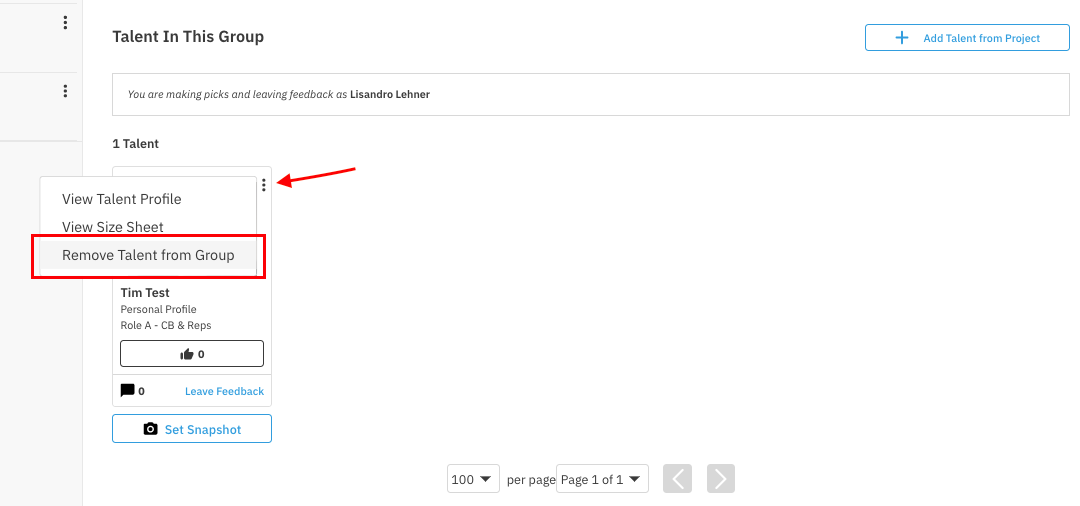
On the pop-up, choose Yes, Remove to confirm.