
CASTING DIRECTORS: What has been updated on the Session Page?
The Session page now combines the "Group Detail" and "Session Detail" pages into a single, unified experience. Designed specifically for Casting Directors, this feature streamlines your workflow by allowing you to manage groups, review media, and organize talent in one location, saving you time and ensuring you have all the tools you need in one view.
What is new on the Session page?
Previously, users had to navigate between two separate pages to manage their sessions effectively. The update solves this by consolidating these views. It is accessible wherever you currently access Group Detail and Session Detail pages within the Casting Networks platform.
How is the page layout organized?
The new layout provides all necessary information at a glance and is divided into four logical sections:
Header "Session" Section
Located at the top of the page, this section serves as the command center for the session.

Session Context: Displays key information about the current session so you always know where you are working.
High-Level Actions: Allows you to edit the session name and navigate to other sessions.
Left "Groups" Column
This is a dedicated column on the left side for navigating and managing Groups within the session.
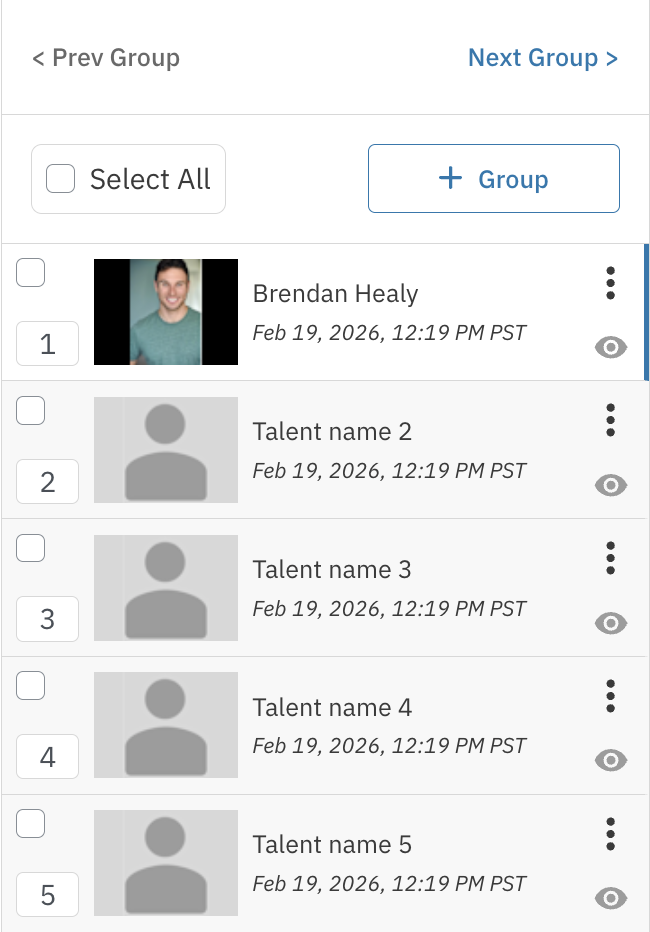
Reorder, rename, select, and add Groups.
Hide or unhide Groups.
Navigate easily between different Groups.
Middle "Media" Section
The central area of the page remains fairly unchanged. This section still focuses on media playback and review, allowing for immediate viewing of talent materials without leaving the list.
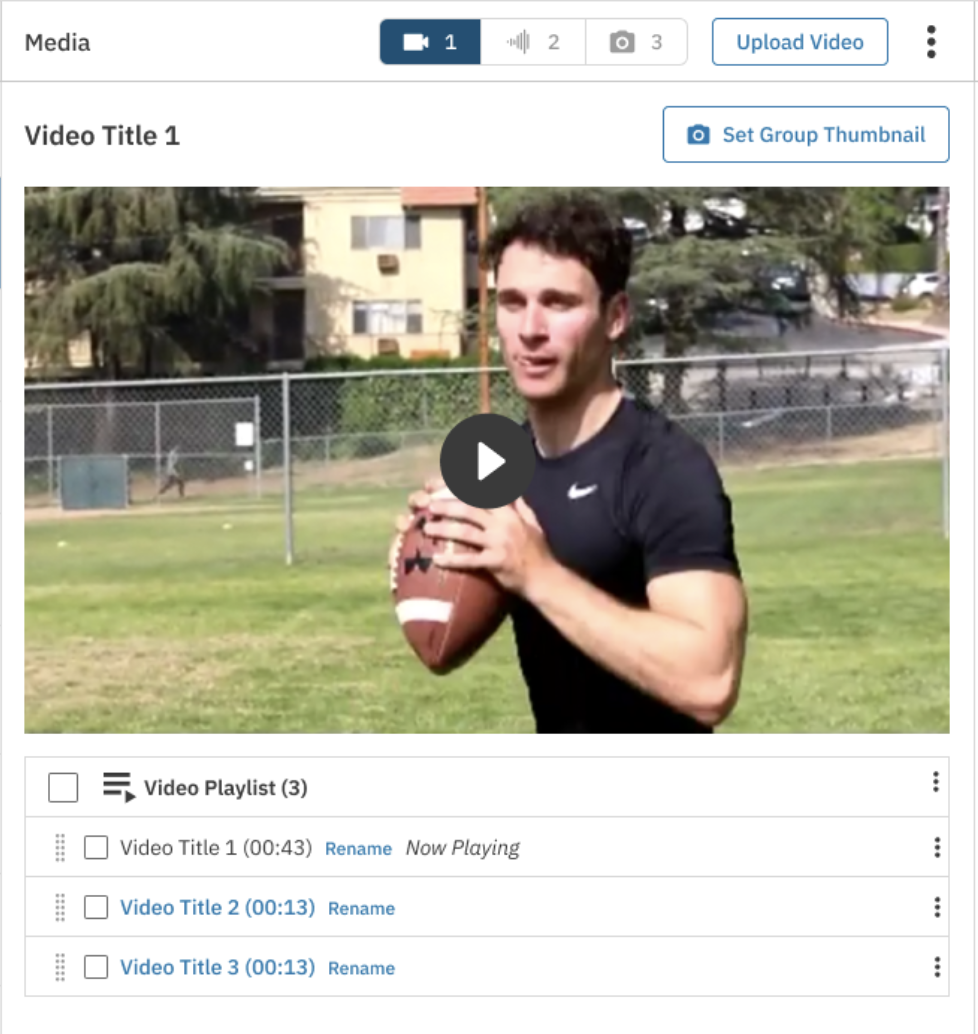
Select the media type you want to review.
Select, upload, download, delete, and rename media.
Set Group thumbnails.
Reorder media files.
Right "Talent" Column
The column on the right displays the list of Talent for quick viewing alongside groups and media.
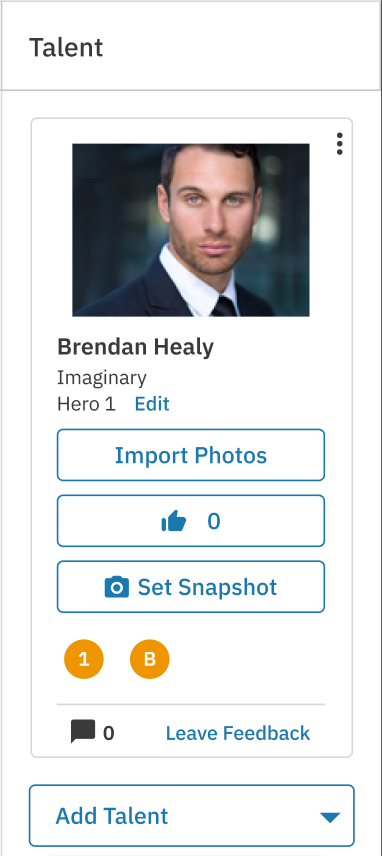
Talent Actions: Toggle "Pick" status, reorder talent within groups, and remove talent from groups.
Snapshots & Photos: Set talent snapshots and import photos.
Navigation: Clicking talent thumbnails opens their public profile in a new tab.
Feedback & Selection: Access the feedback modal and selection tags directly in the list.
Visual Confirmation: Improved notifications ensure you know when actions (like removing picks) are successful.
How do I use Page Filters?
New filtering capabilities allow you to quickly narrow down talent and groups within the session.

Role Filters: Show talent associated with specific roles within the session.
Selects Filters: Refine your view based on "Select Numbers" and "Select Letters" to match your tagging preferences.
Talent Filters: Search and filter by specific talent names.