CASTING DIRECTORS: How do I download all media from a Presentation link?
This article explains how Casting Directors and clients of Casting Directors can download all media files from a presentation link into a single zip file. It covers the steps for both logged-in users and guests to request and retrieve the download link via email.
Initiating the Download
To begin downloading the media contained in a presentation, follow these steps:
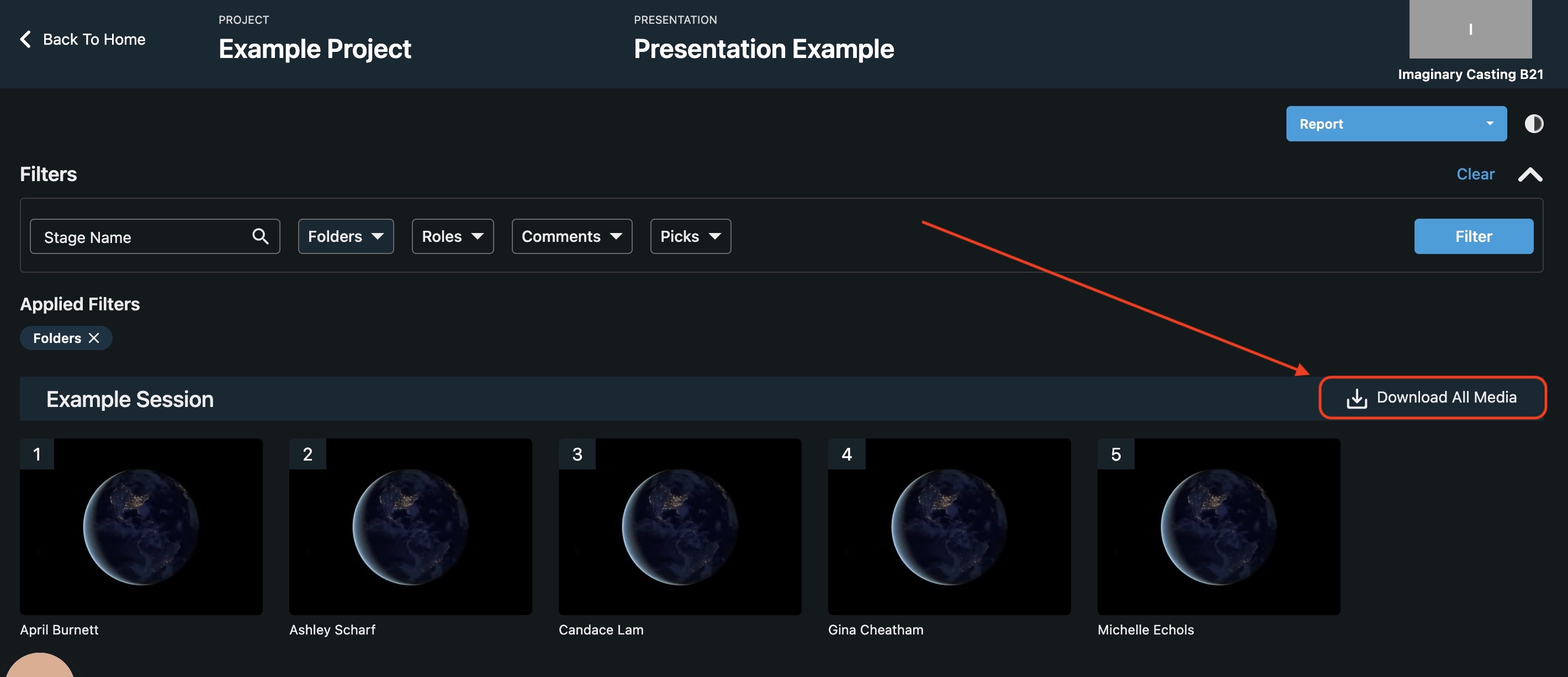
Navigate to the Presentation Link provided to you.
Select the specific folder within the presentation that you wish to download.
Click Download All Media located on the right-hand side of the page.
Confirming the Request
Depending on whether you are logged into your account or viewing as a guest, the next steps will vary slightly:
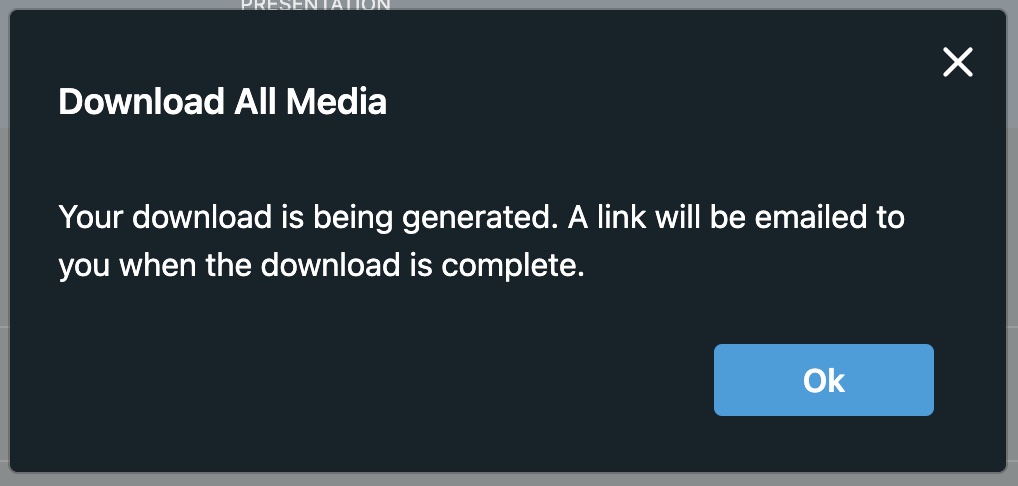
If you are logged in as a Casting Director:
You will see a message confirming that a link will be emailed to you as soon as the download is ready.
If you are not logged in:
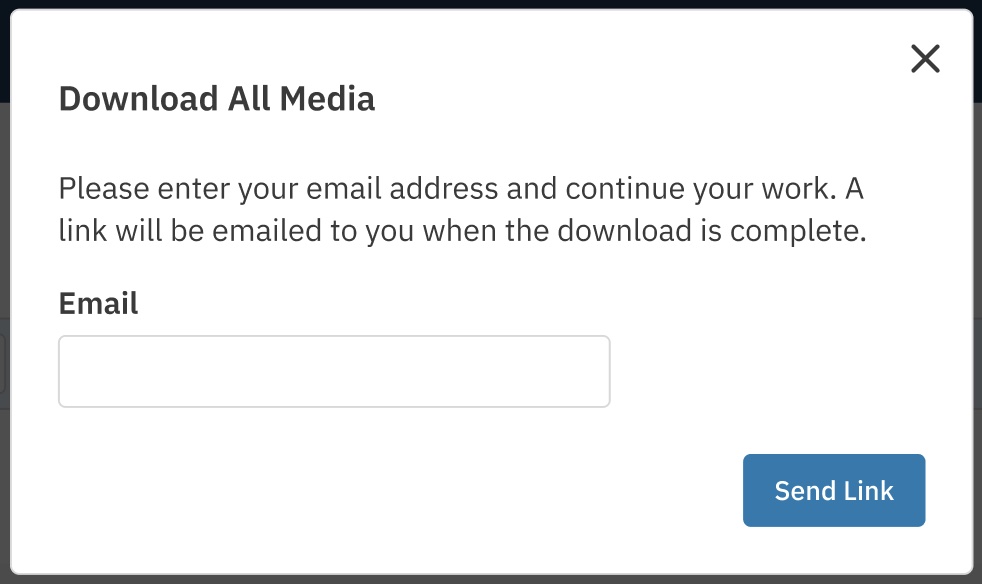
If a Casting Director sent you the link and you are not logged in, follow these steps:
You will receive a prompt requesting your email address.
Enter your email address in the field provided.
Select Send Link.
A message will confirm that a link will be emailed to you when the download is complete.
Retrieving Your Files
Once the system processes your request, you will receive an email containing a unique link.
Open the email and select Download.
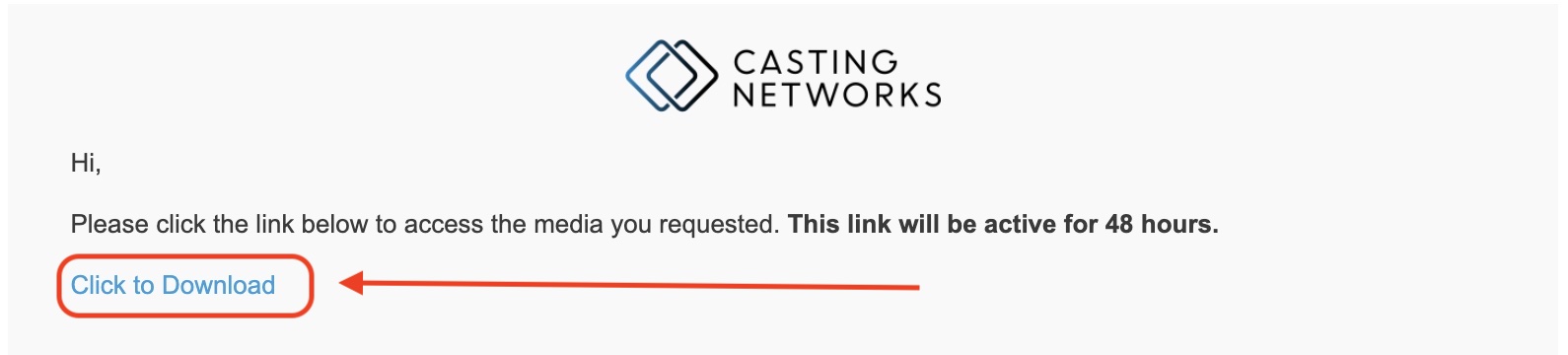
This will download a zip file containing the media directly to your computer.
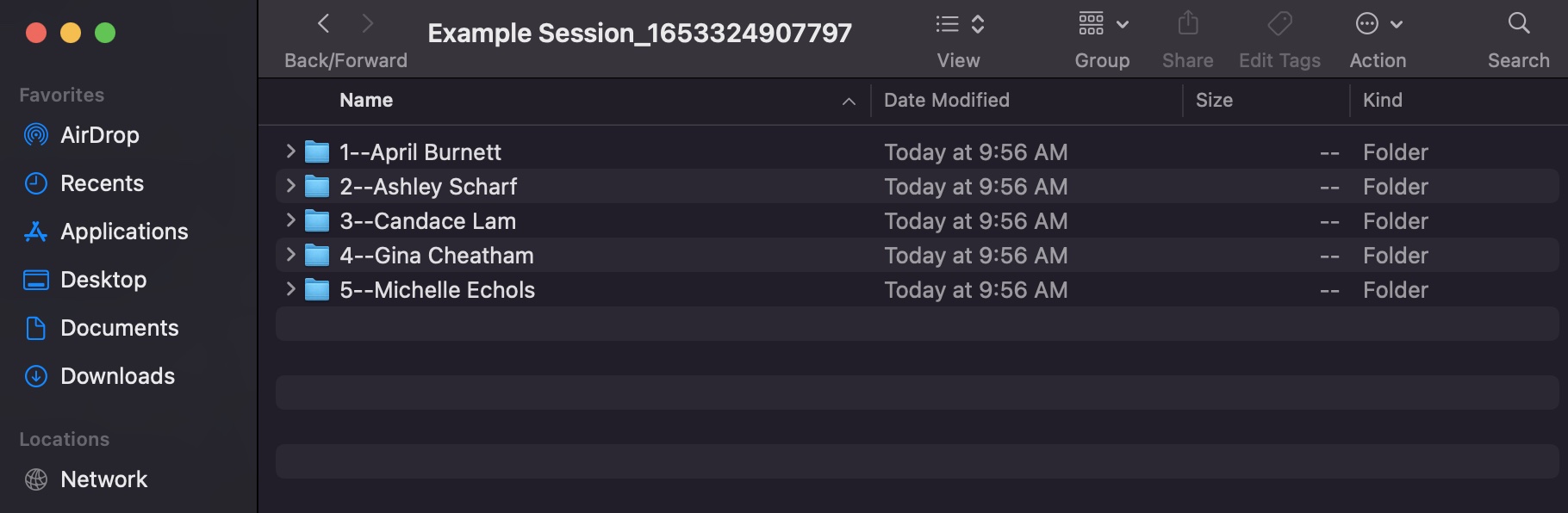
Navigate to your computer's Downloads folder to find and unzip your files.