
CASTING DIRECTORS: What are selection tags and how do I use them?
This article explains the two types of selection tags available in Casting Networks: Number Selects and Letter Selects. Using these tags will help you organize, filter, and manage talent more effectively throughout your casting process.
What Are Selection Tags?
A selection tag is a label you can apply to a talent's submission to help you organize your project. You will see these tags, such as a number from 1-6 or a letter from A-G, throughout your project. Casting Networks offers two independent tagging systems to provide you with greater control and flexibility.
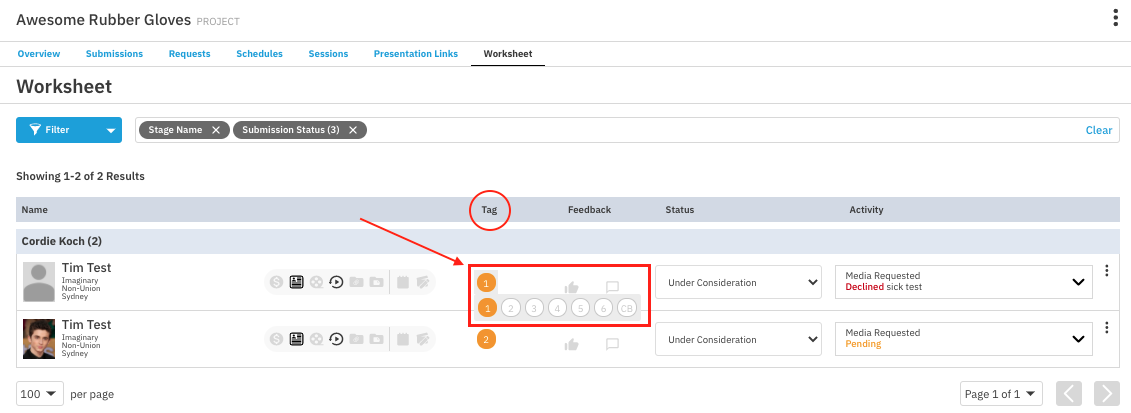
Number Selects (1-6, CB)
The Number Select tag is typically used during the initial submission review process.
You can select any number from 1 through 6, or use CB to represent ‘Callback’.
Letter Selects (A-G)
Letter Selects are a newer, more robust system for organizing and filtering talent.
This feature allows you to apply letters (A-G) to talent, providing a flexible way to add a secondary layer of personal organization without conflicting with the existing Number Select workflow.
This tagging system is independent of Number Selects, meaning you can apply both a number and a letter to the same talent.

Where Can I Use Selection Tags?
Both the Number & Letter Selects functionality is integrated across the platform to support your entire workflow. You can add, edit, view, or filter by tags in the following areas:
Sessions | Group Detail: Add or edit Select tags on this page.
Worksheet: Add and edit Selects. A filter is also available to refine your results by letter.
Talent Pool: Selects will be displayed in the talent list, and a filter is available to search by letter.
Requests: Add and edit Selects when creating, viewing, and editing requests.
Modals:
Add Talent Modal: Assign a Select when adding talent from a Project or a Talent Pool.
Move to Role Modal: Assign a Select when moving talent to a new role.
Share Talent Modal: A Selects filter is included in the modal on the Worksheet.
Create Timeframe Modal: Filter for talent by Selects within this modal.
Frequently Asked Questions (FAQ)
Can a talent have both a Number Select and a Letter Select?
Yes. The two tagging systems are independent of each other, so you can apply both a number and a letter to the same talent for more detailed organization.
Do Letter Selects replace Number Selects?
No. Letter Selects are an additional feature designed to give you a new, flexible layer of organization without interfering with the existing Number Select workflow.