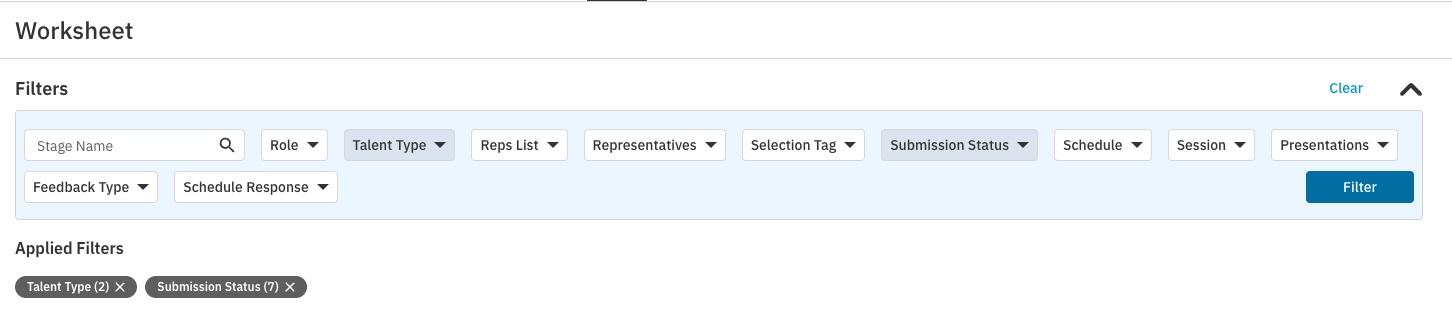
CASTING DIRECTORS: How can I filter my worksheet?
This article outlines the various options available to Casting Directors for filtering talent submissions on their worksheet. Following these instructions will help you efficiently manage and view submissions based on specific criteria.
Filter Options
You can filter your worksheet using a variety of criteria to streamline your casting process. The available filter options are:
Stage Name: Find a specific talent by their stage name.
Role: View all submissions for a particular role in your project.
Talent Type : Isolate submissions from talent who do not have representation or who by who do.
Reps List: Filter by a saved list of representatives.
Representatives: View submissions from specific talent representatives.
Selection Tag (1-6, CB & A-G): Filter by any custom selection tags you have applied.
Submission Status:
Unviewed
Viewed
Selected
Under Consideration
Pinned
On Avail
On Hold
Backup
Booked
Released
Schedules: View talent based on a scheduled.
Session: View talent based on a session.
Presentation: View talent based on a presentation.
Feedback Type:
Audition Presentation Picks
Comments
Schedule Response: View talent based on their response to an auditions schedule.
How to Filter Your Worksheet
To filter your worksheet, please follow the steps below.
Navigate to your project's worksheet.
Select the criteria you would like to filter by.
Once you have made your selections, click the Filter button to apply the filters to your worksheet.