
CASTING DIRECTORS: What kinds of reports are available and how do I generate a report?
This article is for Casting Directors who need to export project data from Casting Networks. It explains the different types of reports available, provides steps on how to generate them.
What kinds of reports are available and how do I generate a report?
You can generate several different reports to help manage your project. Click the steps below to learn how to generate each specific report.
Project Overview Report
Navigate to the global navigation bar and click Reports.
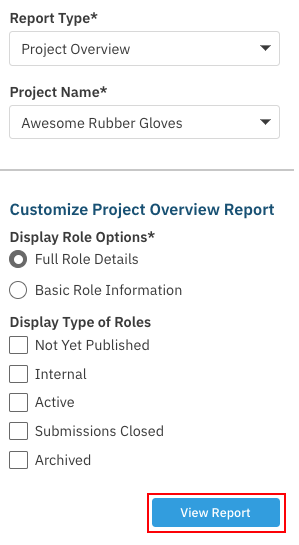
In the "Report Type" drop-down menu, select Project Overview.
In the "Project Name" drop-down menu, select the specific project you wish to view.
Customize the report using the following options:
Display Role Options: Full Role Details or Basic Role Details.
Display Type of Roles: Not Yet Published, Internal, Active, Submissions Closed, or Archived.
When ready, click View Report to generate it.
Theatrical Project Overview Report
Navigate to the global navigation bar and click Reports.
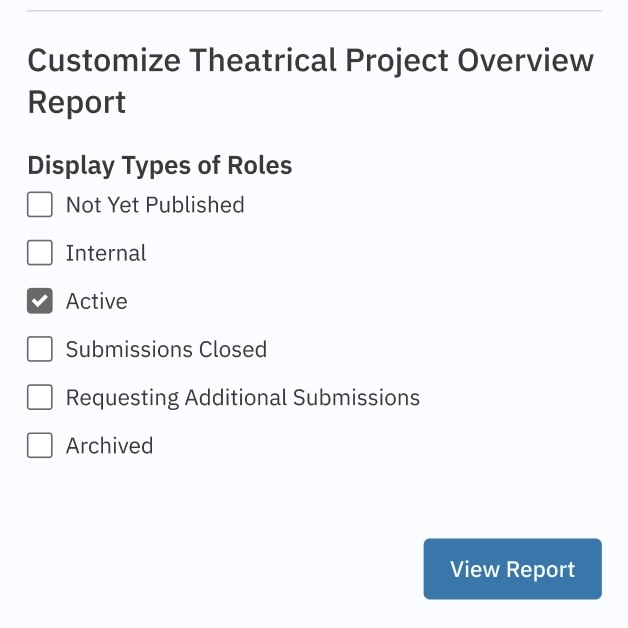
In the "Report Type" drop-down menu, select Theatrical Project Overview.
In the "Project Name" drop-down menu, select the specific project you wish to view.
Customize the report using the following "Display Types of Roles" options:
Not Yet Published
Internal
Active
Submissions Closed
Requesting Additional Submissions
Archived
Click the View Report button.
Schedule Report
Navigate to the global navigation bar and click Reports.
In the "Report Type" drop-down menu, select Schedule Report.
In the "Project Name" drop-down menu, select the specific project you wish to view.
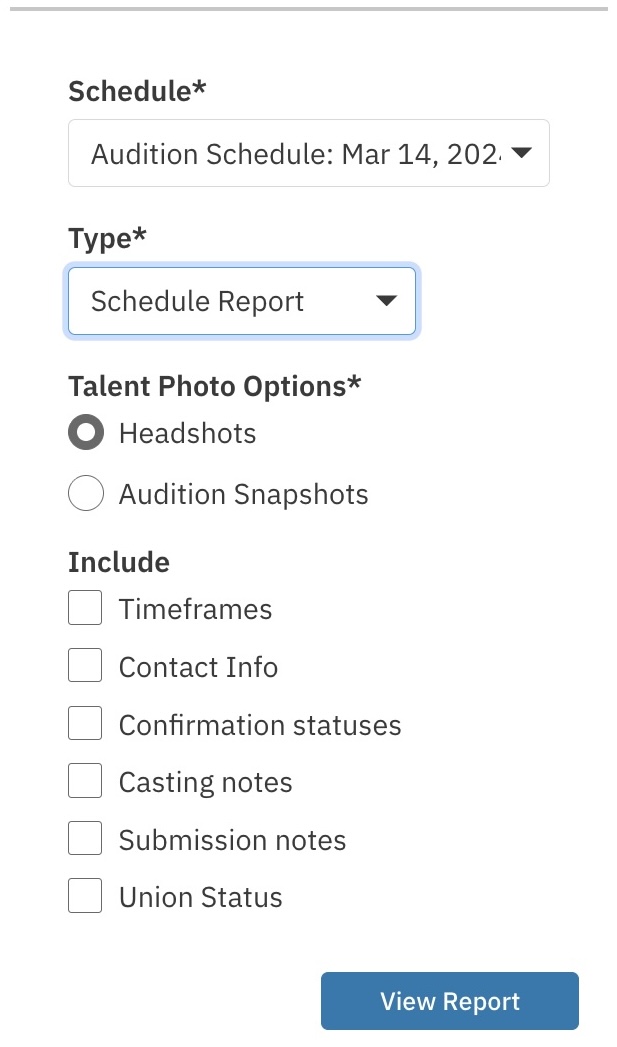
Select the schedule you want to generate the report for.
Choose between either a Schedule Report or a Schedule Size Sheets report.
Schedule Report Customizations:
Select the Talent Photo Type
Headshot (from profile)
Audition Snapshot
Choose additional details you would like to include.
Schedule Size Sheet Customizations:
Report Layout
One Talent Per Page
Two Talent Per Page
Select the Talent Photo Type
Headshot (from profile)
Audition Snapshot
Choose additional details you would like to include.
When ready, select View Report to generate the report.
Presentation Report
Navigate to the global navigation bar and click Reports.
In the "Report Type" drop-down menu, select Presentation Report.
In the "Project Name" drop-down menu, select the specific project you wish to view.
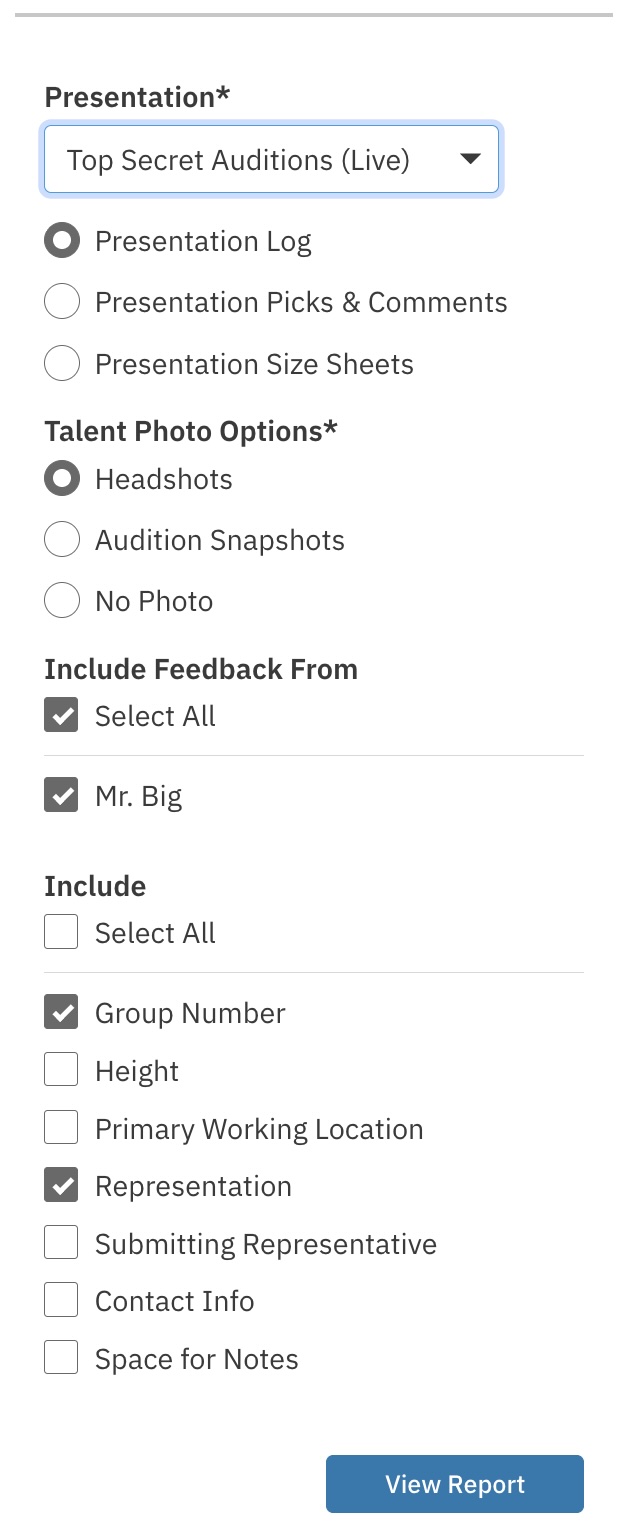
Select the presentation you want to generate the report for.
Choose one of the following options:
Presentation Log
Presentation Picks & Comments
Presentation Size Sheets
Choose additional details you would like to include.
When ready, select View Report to generate the report.
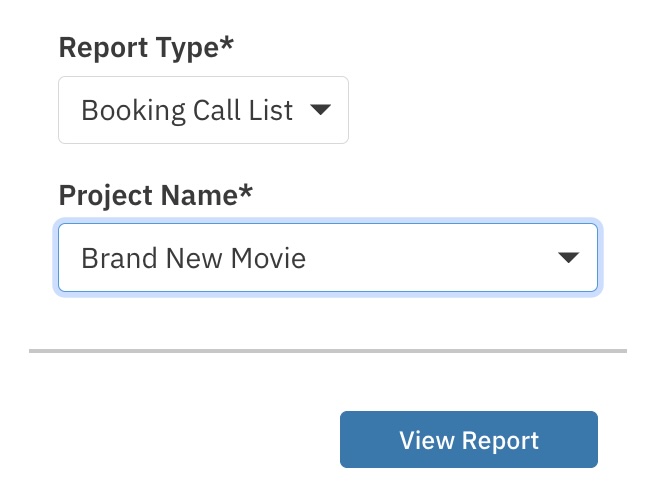
Booking Call List Report
Navigate to the global navigation bar and click Reports.
In the "Report Type" drop-down menu, select Booking Call List
In the "Project Name" drop-down menu, select the specific project you wish to view.
Select View Report to generate the report.
Agency Call List Report
Navigate to the global navigation bar and click Reports.
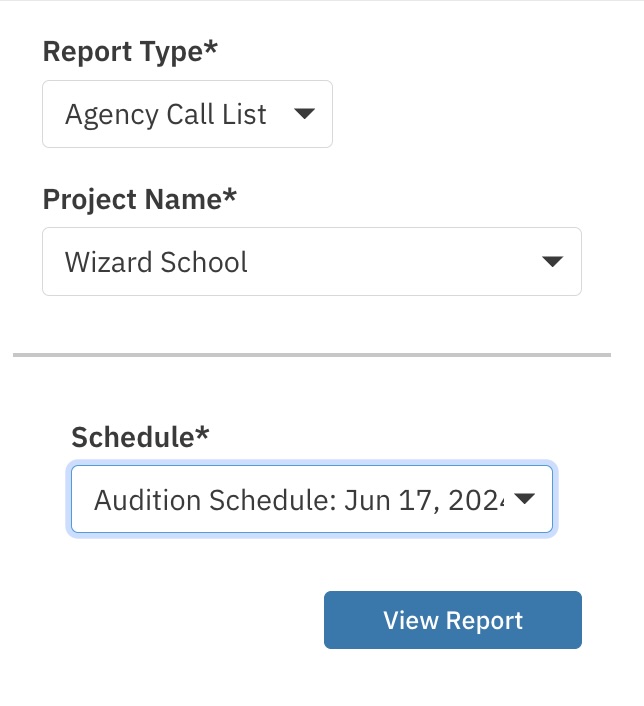
In the "Report Type" drop-down menu, select Agency Call List
In the "Project Name" drop-down menu, select the specific project you wish to view.
Select the schedule.
When ready, select View Report to generate the report.
Session Size Sheet Report
The Session Size Sheet Report allows casting directors to create and download structured reports for audition sessions.
Accessing the Report
Navigate to the global navigation bar and click Reports.
In the "Report Type" drop-down menu, select Sessions
In the "Project Name" drop-down menu, select the specific project you wish to view.
Under "Sessions", use the drop down to find and select the name of the session
The report will be grouped by audition session. Each session will appear as an individual section in the report.
Choose the Session Size Sheet option.

Choose additional details you would like to include.
When ready, select View Report to generate the report.
This will generate a CSV file that can be opened in any spreadsheet application (i.e- Google Sheets, Excel, etc)
Frequently Asked Questions
What is the difference between Project Overview Report and Theatrical Project Overview Report?
it's a Report specifically to display project and role data in a format preferred by film and television CDs
Project Overview Report - More comprehensive view containing all the data you need to see a general overview of your project. Best for record-keeping and reference.Theatrical Report - Designed for high-level Studio and Network review and breakdown approval. Focused only on the most critical aspects of the project.