
CASTING DIRECTORS: How do I move talent within a schedule?
This article provides casting directors with clear instructions on how to relocate talent to different timeslots or timeframes within a project schedule. Whether you prefer using a menu or a quick drag-and-drop, we'll ensure you can manage your session flow efficiently.
How do I move talent to another timeslot?
If you need to move a specific performer to a different spot in your schedule, follow these steps:
Click on Schedules located below the project name.
Click on the specific schedule you wish to edit.
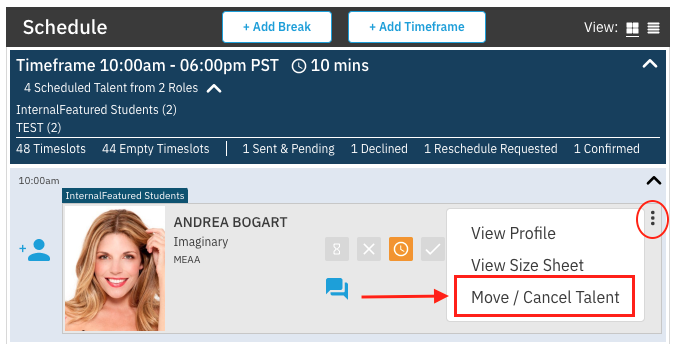
Find the talent you wish to move and click on the overflow menu (⋮).
Choose Move / Cancel Talent.
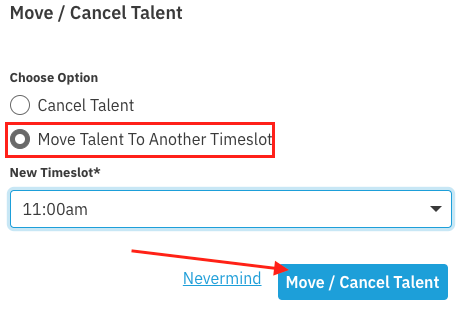
Select Move Talent To Another Timeslot.
Click on the new timeslot you wish to move the talent to.
Click Move Talent.
Can I move talent without using the menu?
Yes! For a faster workflow, you can use the drag-and-drop method:
Simply click and hold the talent's name or profile.
Drag them to the desired new timeframe.
Release the mouse to drop them into the new slot.
How do I let talent know their time has changed?
Moving talent within your internal schedule does not automatically update the performer. To ensure they show up at the right time:
Click the Send Times button to dispatch the updated schedule details to the talent.