CASTING DIRECTORS: How do I message Talent Representatives?

Edited

This article explains how to send and reply to messages with Talent Representatives directly through the Scheduler or Worksheet to streamline communication regarding auditions and booking details.


How do I send a message via the scheduler?

  1. Go to the Schedules tab on your project.

  2. Choose a schedule.

  3. Select the chat icon to the right of a talent's information.

A simple blue icon representing two overlapping chat bubbles or speech boxes.

  1. Enter your message and press Send when ready to send to the talent's representative.

    • Note: There is a 500 character limit.

A screenshot showing a blue-bordered text input field containing the question "Can Asher perform with a southern accent?" A blue "Send" button is to the right of the input field. Below the text box, it reads "500 Character limit".

Replying to a chat

  1. When you receive a reply, there will be a number in red at the top of the chat icon.
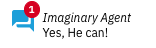
A chat icon in teal blue with a red circle containing the number "1" on the top left, followed by the text "Imaginary Agent" on the first line and "Yes, He can!" on the second line.

  1. Click on the chat icon to reply to the talent representative.
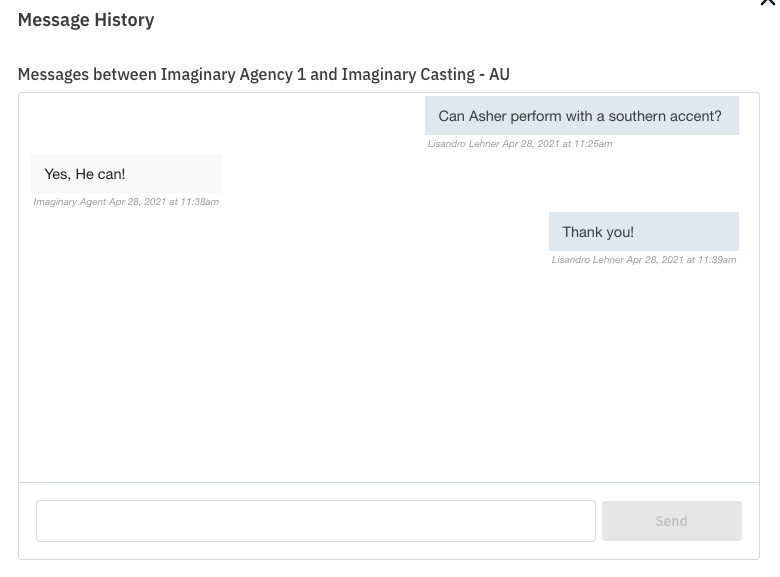
An image showing a "Message History" pop-up box with a conversation between "Imaginary Agency 1" and "Imaginary Casting


How do I send a message via the worksheet?

  1. Go to the Worksheet tab on your project.

  2. Go to the talent you want to send a message for.

  3. Select the blue chat bubble icon.

A section of an email or contact card for "Andrea Bogart," labeled "Hero Mum 100% (5)." The card includes a profile picture, her name, affiliation ("Imaginary MEAA Sydney"), phone number, and email address: "agent.imaginary@mailinator.com (Rep)." To the right, under "Audition Schedule: Oct," the date "16, 2021" is displayed. Below this date, there is a row of icons with a red arrow pointing specifically to a speech bubble icon, which is highlighted with a red box.

  1. Enter in your message and press Send.
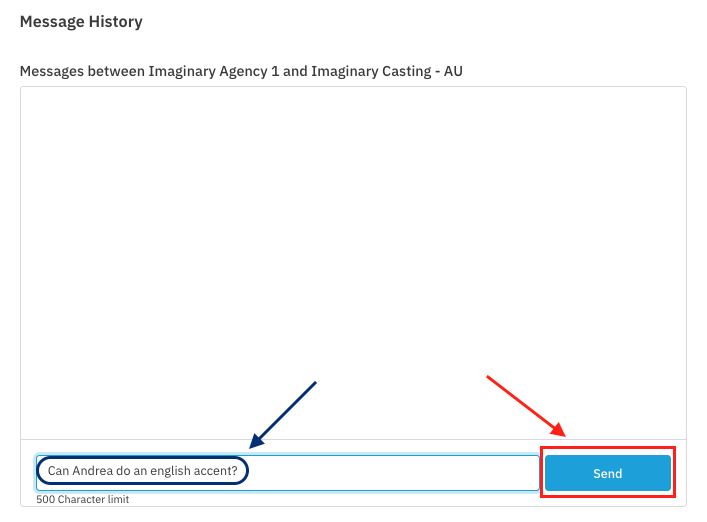
A screenshot of a "Message History" section on a website showing a conversation between "Imaginary Agency 1 and Imaginary Casting - AU". A message input box at the bottom contains the text "Can Andrea do an english accent?" A blue arrow points to this input box. To the right of the message box is a blue "Send" button, which is outlined with a red box, and a red arrow points to it. Below the input box, it indicates a "500 Character limit". The main message area is empty.


How do I manage Message Notification Settings?

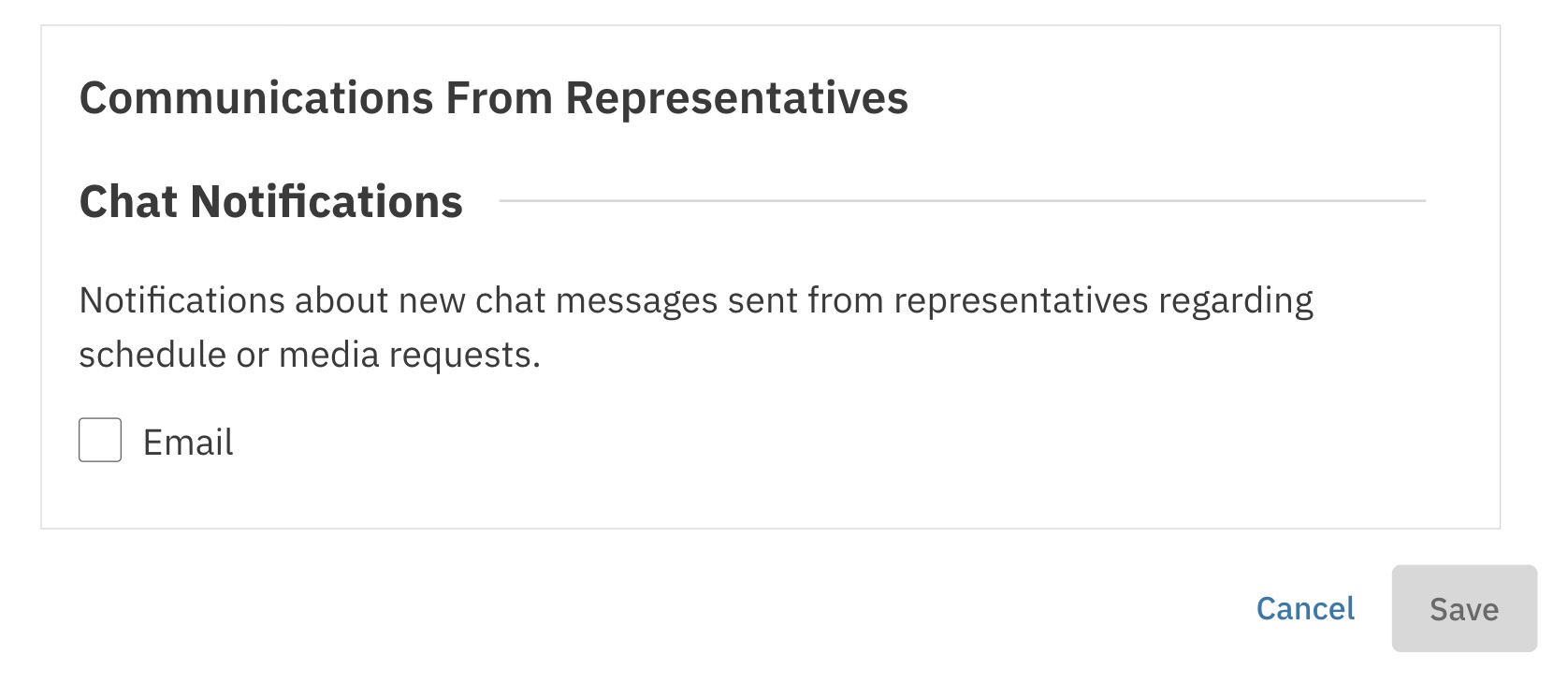
You can choose to be notified via email when Representatives send new messages within a project. To update your notification preferences:

  1. Navigate to Settings Account Settings Notification Settings.

  2. Select the option to opt into email notifications.
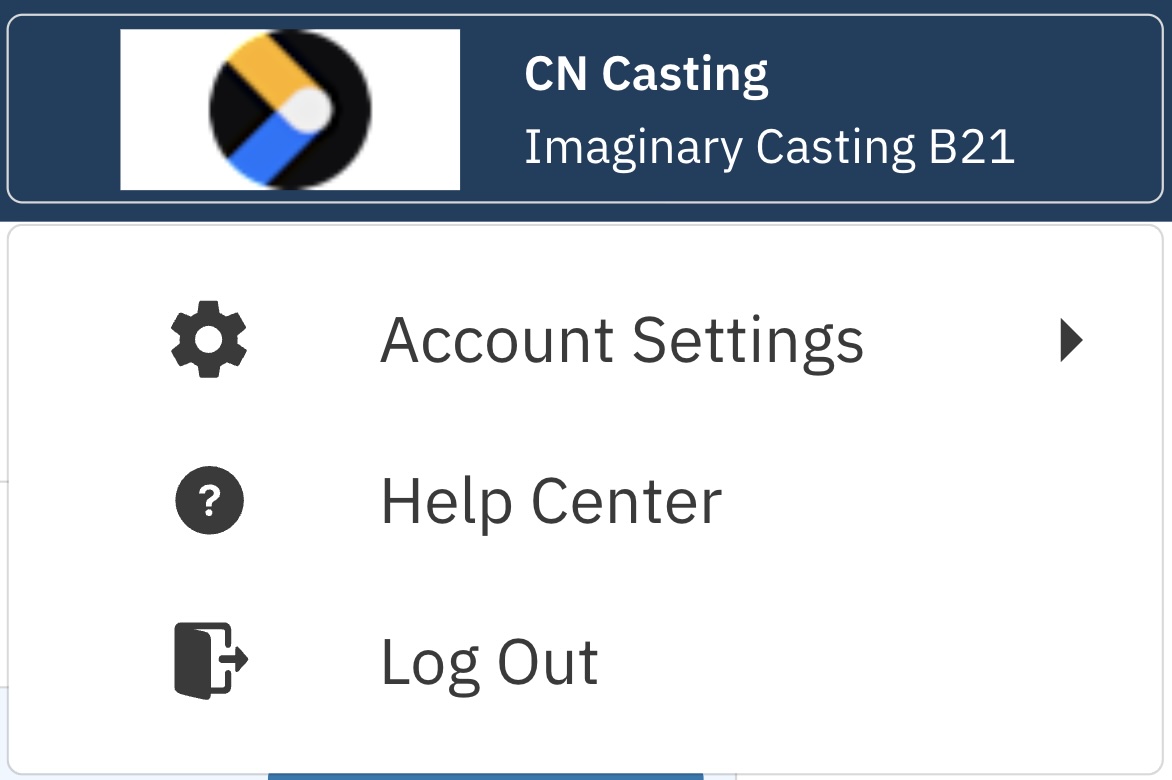
User menu for CN Casting, Imaginary Casting B21. Options include Account Settings with a gear icon, Help Center with a question mark icon, and Log Out with an exit icon.

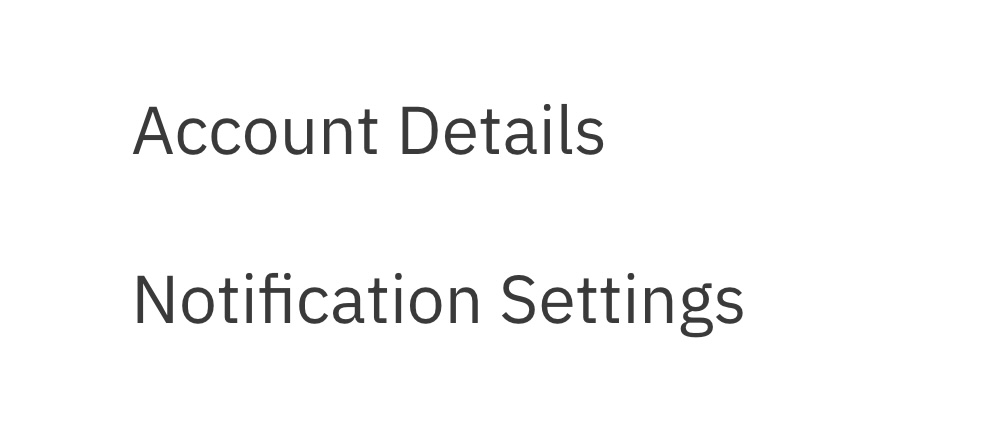
A partial screenshot showing a menu or settings list with two visible options: "Account Details" and "Notification Settings".

A section heading reading "Communications From Representatives" is followed by the subheading "Chat Notifications". Underneath is a description: "Notifications about new chat messages sent from representatives regarding schedule or media requests." Below the description is a checkbox labeled "Email".

Was this article helpful?

Sorry about that! Care to tell us more?

Thanks for the feedback!

There was an issue submitting your feedback
Please check your connection and try again.