
CASTING DIRECTORS: How do I view and manage Request statuses?
This article explains how to view the responses to requests you have sent to talent and provides a breakdown of what each status means helping you keep track of who is interested, who has declined, and which requests are still pending. For Pending requests, this also provides steps on Cancelling requests.
Viewing Request Responses
To check the status of your requests, follow these steps:
Click Requests below any project name.
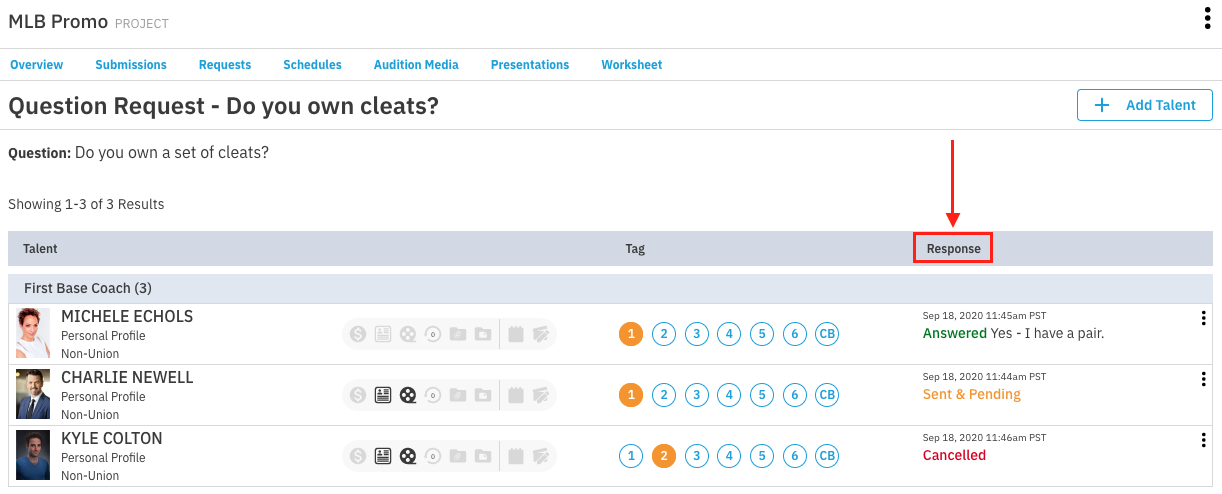
When viewing the details, look for the column titled Response. This indicates the current status of the request by the talent.
Understanding Response Statuses
Responses will appear in different colors to help you quickly identify their status. Here is what they mean:
Answered
Received Response
Sent & Pending
Not Yet Sent
Canceled
Declined: Please note that Talent Representatives and Talent can decline Media Requests. You can view these decline responses and response notes on the request and within your activity log.
Canceling a Request
If a talent has not yet answered or responded to your request, and you no longer require a response, you have the option to cancel the request.
To cancel a request for an individual talent:
Find the talent you would like to cancel
Click on the overflow menu (⋮) on the right hand side
Choose Cancel Request
A pop-up will appear to confirm your cancellation
*You can include a message explaining why the request was canceled.
The Response column will update to ‘Canceled’ for that talent.
Please note: a request can only be cancelled if the talent has not yet submitted a response.
To cancel a request for all talent in a request:
Click on the specific Question or Request Media
Click Cancel Request at the bottom of your screen
A pop-up will appear to confirm your cancellation
*You can include a message explaining why the request was canceled.
The Response column will update to ‘Canceled’ for those talent whose responses were pending.
Please note: only talent who have not yet submitted a response will have their request cancelled.