
CASTING DIRECTORS: How can I request additional media?
This article describes how to enable the option for talent to upload extra media files after their initial submission to a Media Request, and the best workflow for managing these uploads in presentations.
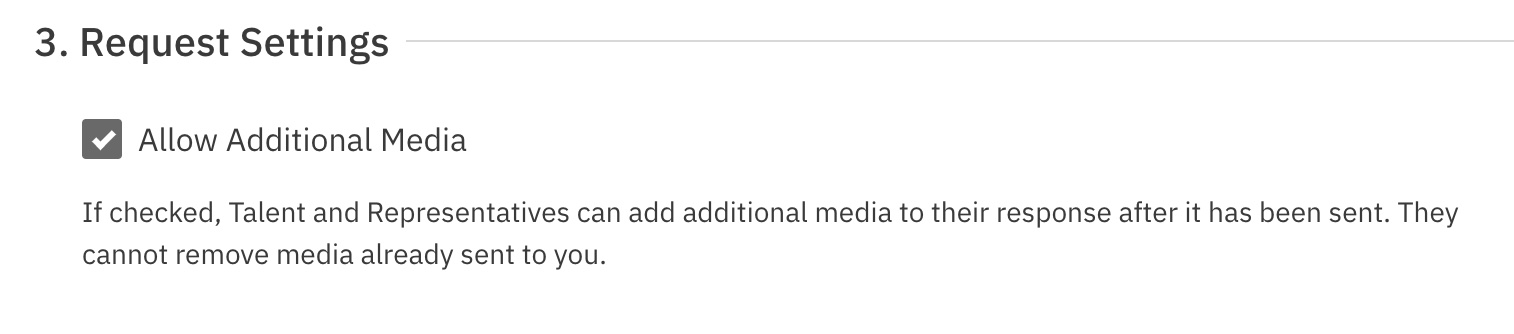
Enabling Additional Media
When creating a Media Request, you have the option to allow additional media to be uploaded after talent have submitted their original response. This feature is optional and allows for more flexibility.
Viewing Additional Media
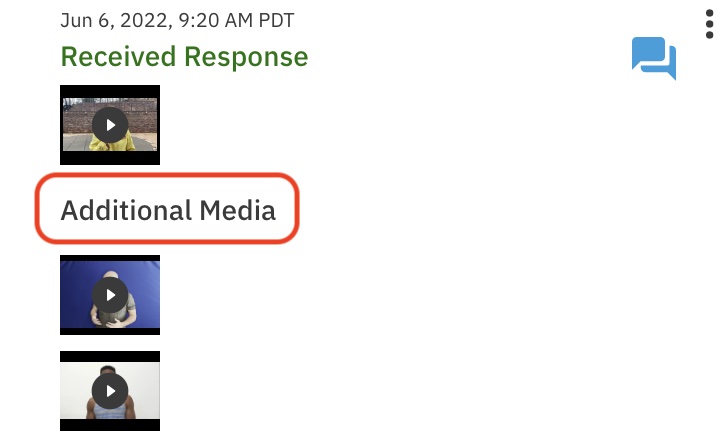
When a talent uploads additional media, it will be listed as "Additional Media Uploaded" on the media request tab.
Workflow for Live Presentations
If you choose to allow additional media, we recommend following this specific workflow rather than creating a live presentation directly from the media request session:
Create an additional, new session.
Review the submissions in the original media request session.
Copy the talent and current media to the new session.
Create the live presentation from that new session.

Media Limits
Media Requests are limited to a total of 10 media items, including additional media.