TALENT REPRESENTATIVES: How can I use InEntertainment with Casting Networks?
This article provides a reference guide for Talent Representatives on how to use the InEntertainment integration with Casting Networks. It covers importing projects, auditions, and callbacks directly from Casting Networks into your InEntertainment software.
Note: This is a reference for InEntertainment. If you run into any trouble with the InEntertainment software, please contact InEntertainment directly.
Importing a project from Casting Networks to InEntertainment
Login to your Casting Networks account.
Select a project that has been released to your agency/division.
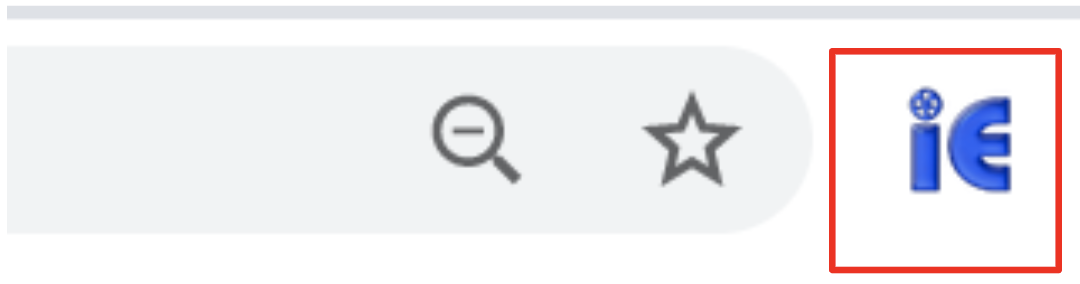
Click the InEntertainment Chrome plugin to begin import of the selected project.
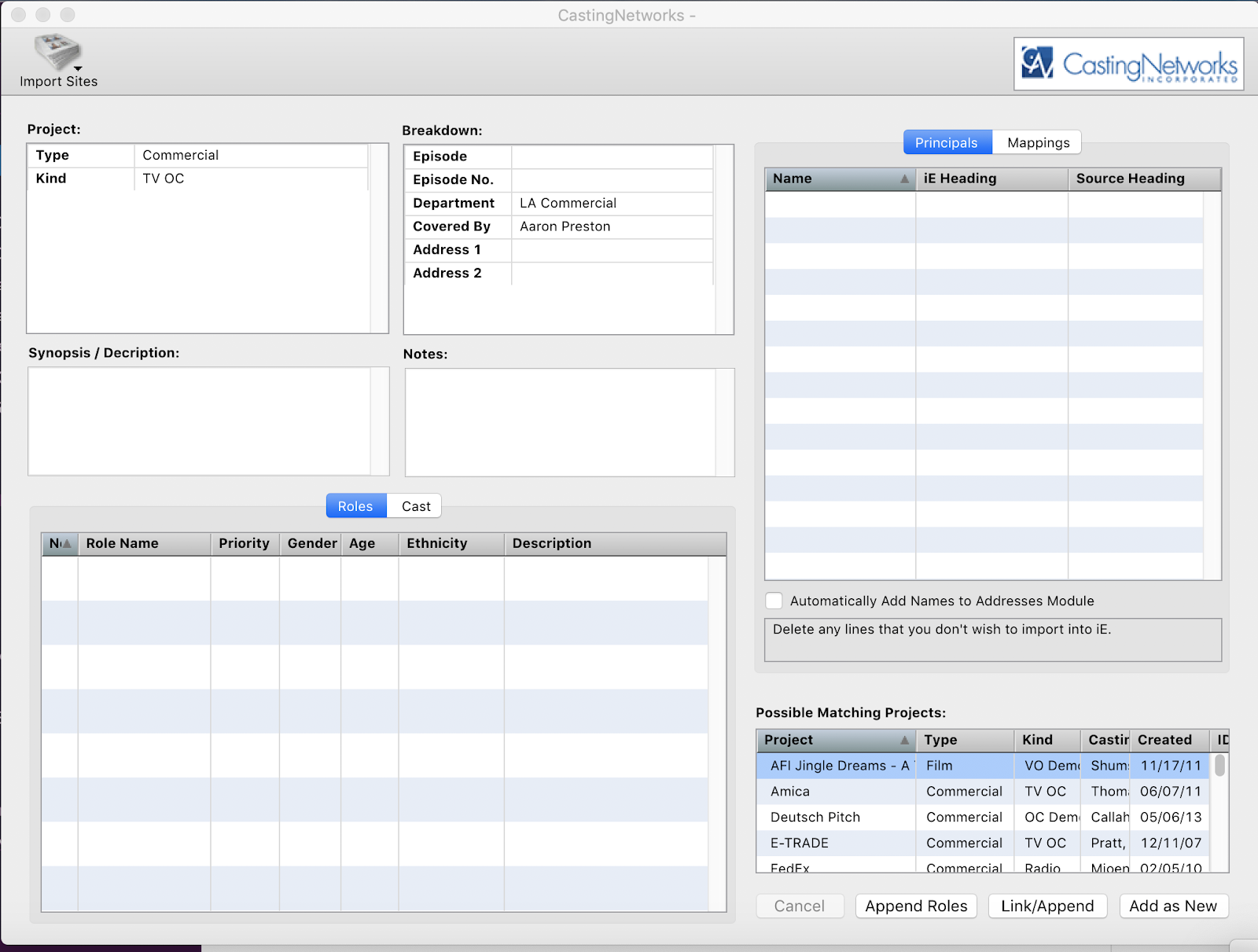
Once clicked, InEntertainment will launch and the import project screen will be displayed.
Importing auditions or callbacks from Casting Networks to InEntertainment as appointments
Launch InEntertainment and open an existing project. Click the appointments tab once the project is displayed.
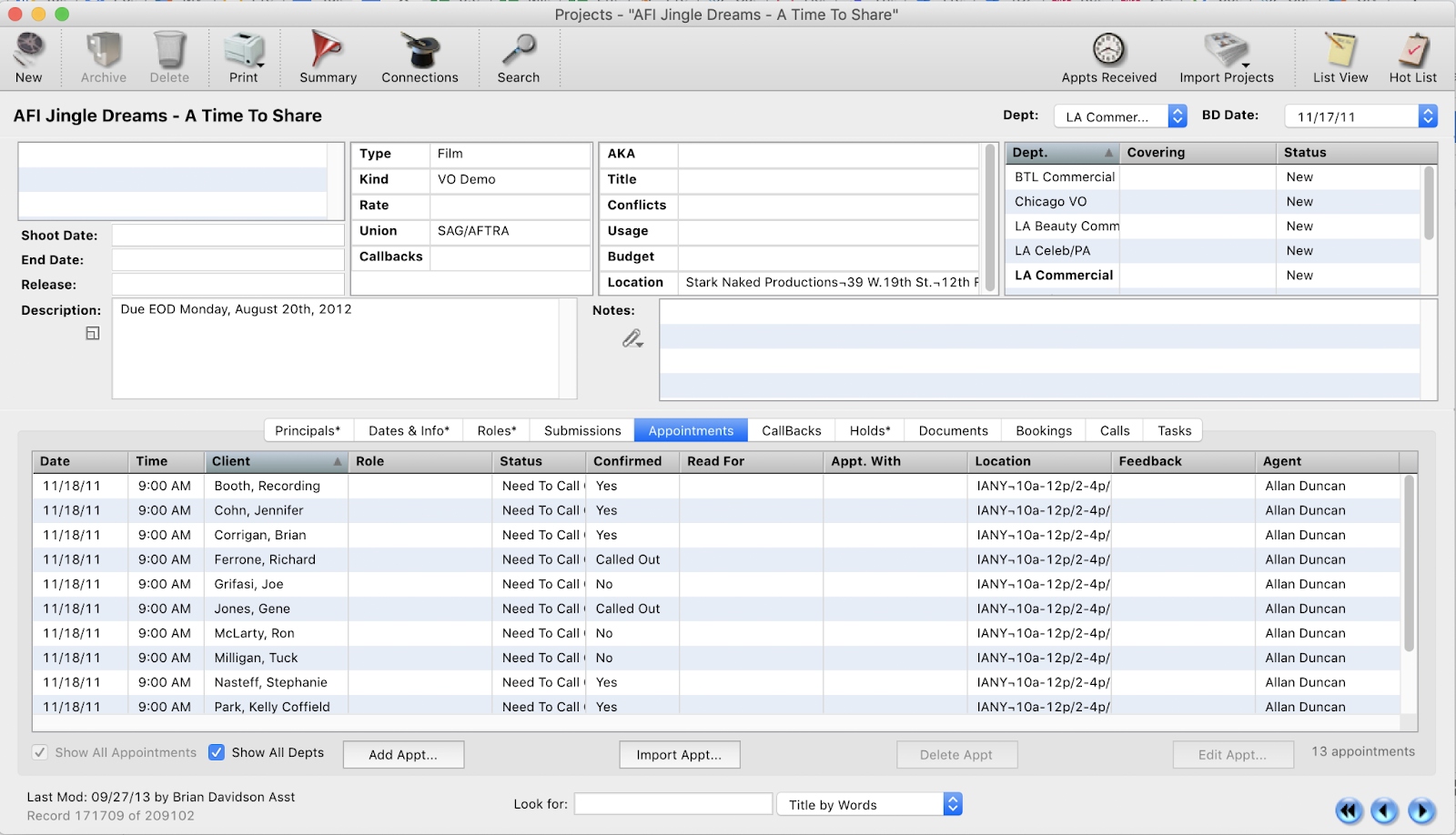
Click the InEntertainment Chrome plugin to begin import of the selected project.
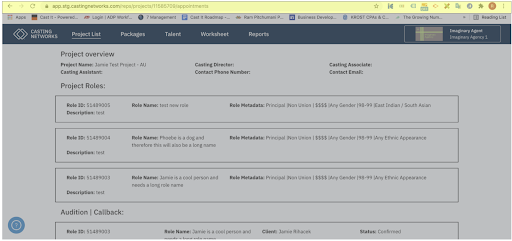
Viewing list of callbacks or auditions in New Casting Networks
You can view auditions or callback list in the new Casting Networks by including a ‘/appointments’ in the address bar of your browser.