
TALENT REPRESENTATIVES: How do I create, manage, and share packages?
This article is for Talent Representatives who want to use the Packages feature. Here, you'll learn how to create a new package, organize talent within it using folders, share it with clients, and delete it when it's no longer needed.
How to create a new package
Click Packages in the global navigation menu.
Click the blue +New Package button.
Give your package a title and click Add.
How to add talent to a package
Once you have created your package, you must add folders to organize your talent.
1. Create a folder
Folders are used to organize the talent *within* a specific package. This is helpful when you want to group talent for your clients.
You can use folders to separate talent by role, age group, or any other criteria you choose.
You can add multiple folders to a single package.
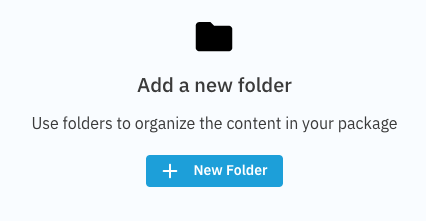
Inside your package, click +New Folder.
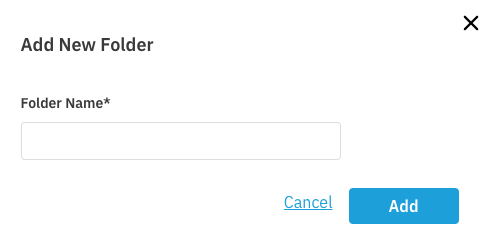
Title the folder (e.g., "Leads," "Supporting Roles") and click Add.
2. Add talent to the folder
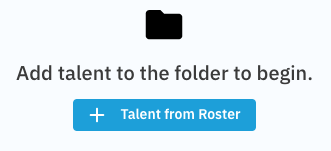
Click +Add Talent from Roster inside the folder you just created.
You can find specific talent by clicking Filter in the top left corner to narrow down your roster.
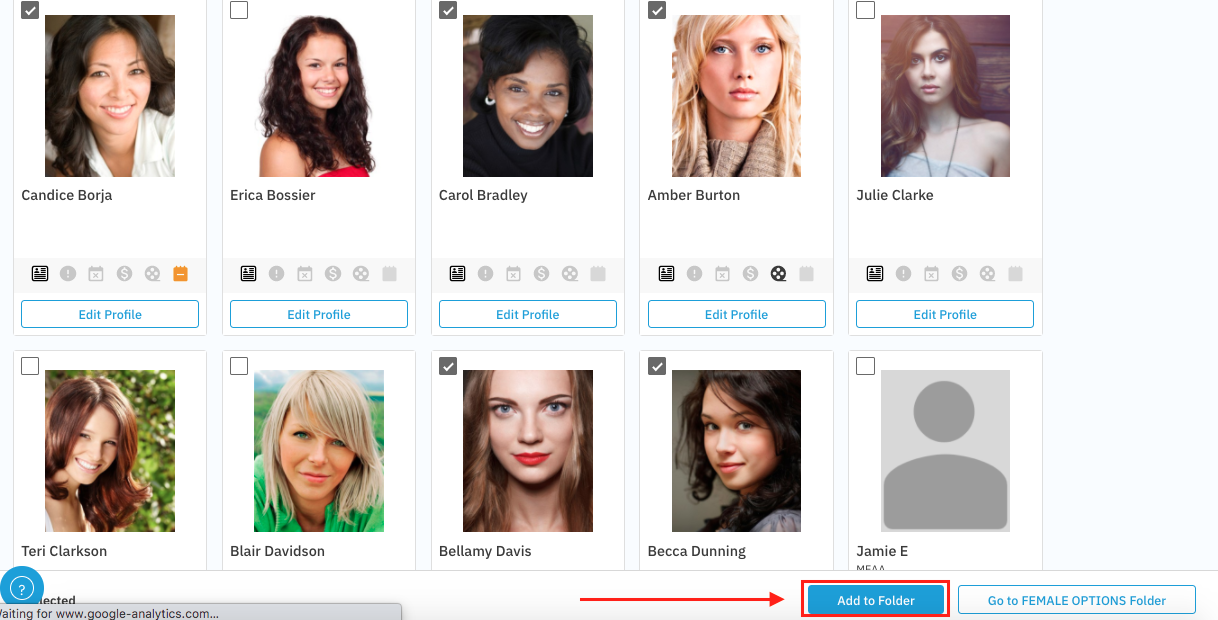
Select the box in the upper-left corner of each talent's thumbnail you wish to add.
When you have made your selections, click the Add to Folder button.
How to share a package
After you have finished building your package, you can create a shareable link to send to clients.
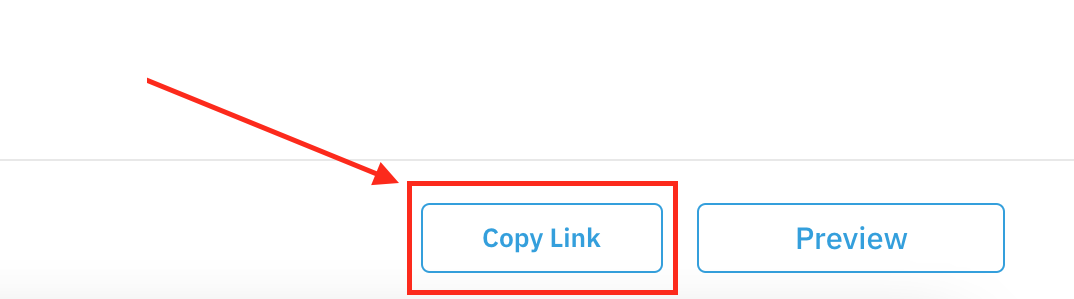
Select the Copy Link button located in the bottom right corner of your screen.
Open your email client and paste the link into the body of your email.
How to delete a package
If you no longer need a package, you can delete it.
Click the overflow menu (⋮) to the right of the package or folder you wish to remove.
Select Delete from the dropdown menu.

A pop-up will ask you to confirm. Click Delete again to permanently remove the package.
Please note: Once a package has been deleted, it cannot be recovered.